Bill Bennett: Reporter's Notebook


Sky-Blue M4 MacBook Air review: better, faster and $50 cheaper

The 2025 MacBook Air M4 handles Logic Pro and other demanding apps with ease, making it a surprisingly capable choice at NZ$2400. This was originally posted in May 2025.

2025 MacBook Air M4
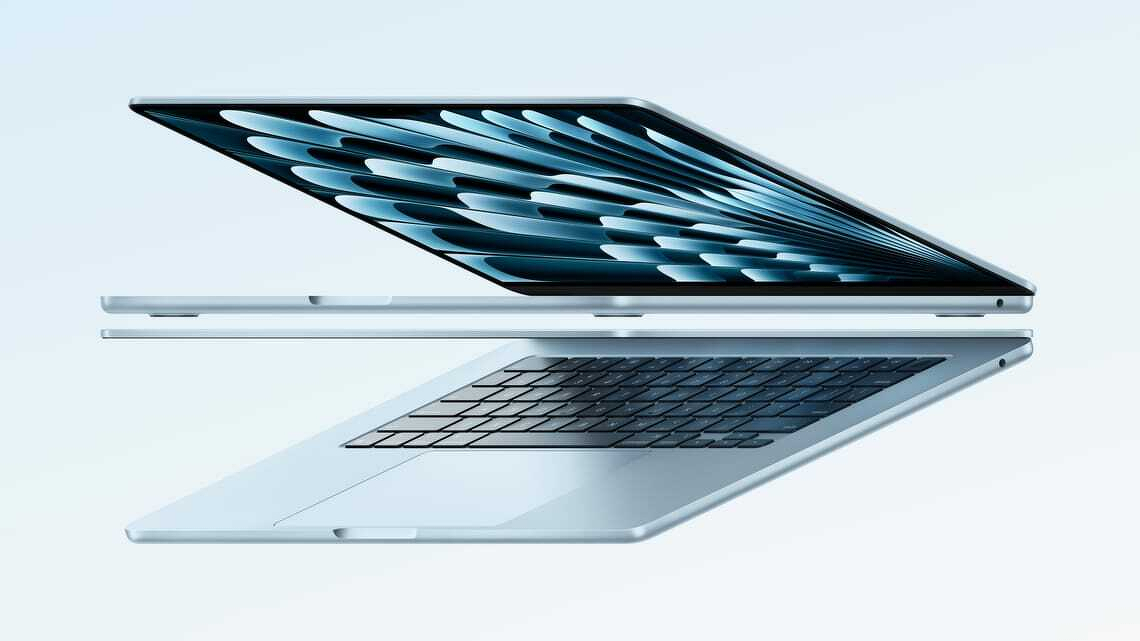
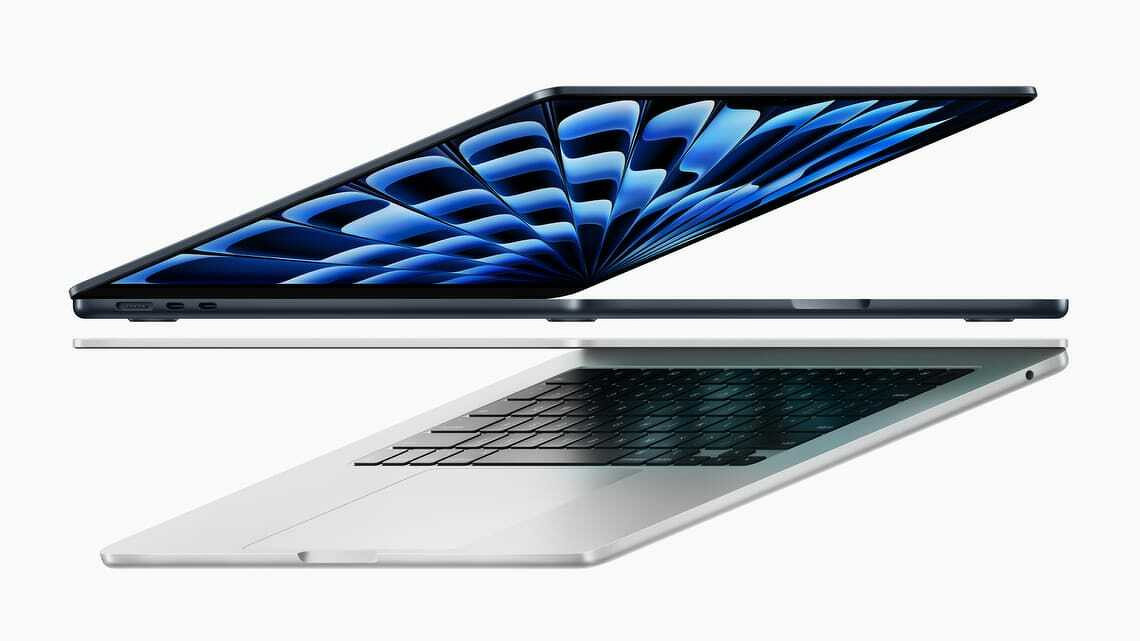
The 2025 MacBook Air M4 has a familiar design but adds a new sky blue colour option.
Component MacBook Air M4 (2025/2026)
Processor Apple M4 (10-core CPU / 10-core GPU)
Base RAM 16GB Unified Memory (Configurable to 32GB)
Display 13.6" Liquid Retina (2560 x 1664), 500 nits
External Monitors Up to 2 external displays (with lid open)
Webcam 12MP Center Stage (with Desk View support)
Price (NZD) From $2000 for a model with 16GB Ram, 256GB storage.

Basics

Apple sent a review model 13-inch MacBook Air with 16GB of RAM and 512GB of storage. This configuration sells in New Zealand for $2400.

I used it as my daily work computer for four weeks. The biggest change isn’t raw performance, but how quietly and consistently it handles everyday work.

From the outside, it’s indistinguishable from the 2023 or 2024 models apart from the pale metallic finish. Apple calls this colour “sky blue”, replacing space grey.

Otherwise, nothing has changed. It’s thin, light and solidly built. The ports, screen, keyboard and trackpad are all carried over. There was nothing to fix.

Apple doesn’t mess with a formula that works.

Screen nit-picking

The 13-inch Liquid Retina display is excellent. At 2560 × 1664 pixels, text is crisp and colours are vivid. Photos and video both look great.

Apple sticks with a 60Hz refresh rate. MacBook Pro models offer 120Hz, which is smoother, but for most users it’s a nice-to-have rather than essential.

If you’re gaming at high frame rates or scrubbing video timelines all day, the Pro still makes more sense.

Fewer pixels than the MacBook Pro

The Air has fewer pixels than the MacBook Pro’s 3024 × 1964 display, and it’s slightly smaller at 13.6 inches versus 14.2 inches.

Brightness is also lower: 500 nits compared to the Pro’s 1000 nits sustained (1600 peak). On paper that sounds significant, but in practice the Air is bright enough for almost any job.

During testing I had cataract surgery. Beforehand I needed higher brightness, which hit battery life. Afterwards, I could turn it down. That’s not a typical benchmark, but it did underline how usable the display is across conditions.

If one screen isn’t enough, the M4 Air now supports two external displays while the lid remains open.

If the laptop screen is not enough, you can now run two external monitors from the MacBook Air while the computer’s lid is open.

Keyboard, trackpad and ports

You’ll struggle to find a better laptop keyboard. As someone who types all day, I find the MacBook Air the best laptop for writing.

At the top right, the power button doubles as a Touch ID sensor. It’s fast, reliable and works for logins, passwords and payments.

Competitors come close on keyboards, but Apple’s trackpad remains unmatched. It’s precise, fluid and natural.

Ports are unchanged: MagSafe for charging, two USB-C ports and a headphone jack. Some complain about the lack of HDMI or Ethernet, but USB-C covers almost everything now.

Webcam and video calls

The upgraded 12MP webcam is a big improvement. Apple’s Center Stage keeps you framed and in focus during calls.

It works automatically. You don’t think about it, and that’s the point.

Apps like Zoom, Teams and FaceTime now feel like first-class experiences rather than compromises.

More computing power

If you’re upgrading from last year’s model, the performance bump is noticeable mainly in demanding apps.

Apple has doubled base memory to 16GB. Last year, that upgrade cost extra. Now it’s standard.

That matters. With 16GB you can comfortably run multiple apps at once. It’s the practical minimum for anything beyond basic office work.

Performance without noise

The M4 chip delivers strong performance without fan noise. The Air stays cool under normal use and only gets warm under sustained load.

I ran a demanding game in the background to stress the system. It became warm, not hot. For everyday work, it stays cool.

It won’t make you type faster, but it will render video, process images and handle 4K workloads without hesitation.

I tested it with Logic Pro and FL Studio. Even pushing towards the limits, there was still headroom.

Productivity: external displays

The ability to run two external monitors with the lid open is a meaningful upgrade.

With multiple screens, it’s easier to spread out research, documents and apps. It’s a genuine productivity boost, especially for writing or editing work.

Earlier Apple silicon Air models had limitations here. The M4 removes them.

Battery life

Apple claims up to 18 hours. In practice, I saw around 13 hours.

Higher screen brightness and external drives both reduce battery life. Even so, it’s enough for a full working day.

Long battery life has been a MacBook strength since Apple moved away from Intel.

Windows laptops have caught up in endurance, but often by trading performance. The M4 Air delivers both.

Running Logic Pro and other demanding apps

At $2000, this is Apple’s cheapest laptop. Yet it handles workloads that once required a MacBook Pro.

Logic Pro runs smoothly, even with large projects, multiple instruments and real-time effects. There’s no stuttering.

That’s a big change from Intel-era MacBook Air models, which struggled with even modest sessions.

The M4 handles advanced features, including AI tools, without breaking a sweat. I only found limits by deliberately overloading it.

FL Studio shows a similar story. Where older Air models hit limits quickly, the M4 runs cleanly and reliably.

Memory and storage options

The M4 MacBook Air supports up to 32GB of unified memory. That’s important for demanding workloads.

While 16GB is enough for most users, serious music or video work benefits from 32GB. It’s expensive, but it adds long-term headroom.

Storage is another constraint. The base model fills quickly if you work with media. Realistically, 1TB is a better starting point, with 2TB worth considering if budget allows.

A fully loaded 13-inch model reaches NZ$4400. The 15-inch version goes higher.

M4 MacBook Air - still light, slim and portable.

Verdict

You won’t find a better mix of performance, features and usability at this price.

It’s faster, more capable and now slightly cheaper than before. That’s rare.

The keyboard, trackpad and speakers remain best-in-class. Battery life is strong. Performance is more than enough for almost any task.

Upgrades are still expensive, but worthwhile if you need them.

Last year’s M3 MacBook Air was arguably the best all-round laptop available. The M4 version takes that title and strengthens it.

M4 MacBook Air at a glance
For: M4 chip delivers huge amount of processing power at the price. Long battery life. Excellent screen, trackpad and keyboard. Great webcam.
Against: Extra Ram or storage is expensive. No WiFi 7.
Maybe: The pale blue case replacing ‘space grey’.
Verdict: You won’t find a better combination of power and features at this price. MacBook Air remains a strong argument for leaving Windows.

Frequently asked questions

Q: Does the MacBook Air M4 support two monitors? A: Yes, unlike previous models, the M4 Air supports two external displays while the laptop lid is open.

Q: Is the M4 MacBook Air good for music production? A: Yes. In my month of testing, it handled Logic Pro and FL Studio sessions that would have made older Intel models stutter.

Q: Is 16GB of Ram actually enough for professional audio in Logic Pro? A: Surprisingly, yes. While the 32GB upgrade offers more “future-proofing,” the new 16GB base configuration handles serious Logic Pro and FL Studio sessions with dozens of tracks and multiple real-time effects without stuttering. Because the M4’s unified memory is so fast, the “memory pressure” stays in the green for most home studio and mid-level professional projects. Only those working with massive orchestral sample libraries or high-end 4K video editing should feel the need to spend the extra $800 on the 32GB model.

Oura Ring 4 review: impressive health tech, but not for everyone

Tiny, powerful and pricey, the Oura Ring 4 tracks sleep, fitness and stress without a bulky watch. For some people, skin reactions could be a real risk. This post was written in October 2025..

Oura Ring 4
Oura Ring 4.

Review: Oura Ring 4

The Oura Ring 4 is the latest version of a popular smart ring that tracks fitness, sleep and stress. This is not a full review. Testing finished early because of an adverse skin reation. Think of it as a snapshot.

Many readers will like the idea. I could not live with the reality. In testing, it did not last 24 hours on my finger.

I’ll explain in more depth why this happened later. First, some background.

The ring is a neat piece of engineering. It weighs five or six grams and sits quietly on your finger while monitoring vital signs.

There are limits. Small devices can only hold so many sensors. Physics and thickness still matter.

The Oura phone app

There is no display on the ring, so you use a phone app to view data. The ring connects over Bluetooth.

The app is well organised and easy to navigate. Some details take a little digging, but it works well.

You can see heart rate in real time. A sleep score appears soon after you wake.

Other insights take longer. You need to build up a body of data before recommendations appear.

Sizing kit before you buy

The ring is about the size of a large wedding ring. Before shipping, Oura sends a sizing kit. There are 12 sizes.

There are multiple colours and finishes. Buying direct, prices start at US$350 for silver. Most models cost about US$500. At the time of writing that’s roughly NZ$850 to NZ$900, plus GST. New Zealand pricing is exchange-rate dependent and may date quickly.

You can also buy from retailers such as JB Hi-Fi. At the time of writing, a gold model sells for NZ$979.

This is not a product you should buy blind. Fit matters.

Oura is expensive for a smart ring. It costs more than rivals from Samsung. At this price, you could also consider an Apple Watch.

Even basic functionality requires a subscription

There is a controversial catch. The ring is of limited use without a subscription.

When you register, you are asked to complete account setup. That includes payment details.

The fee is US$6 a month or US$70 a year. It is not huge, but it feels steep after the upfront cost.

By comparison, Samsung does not charge for its ring app. Apple does not charge for core Apple Watch health features, although that could change.

There is a wider trend here. Hardware makers are looking for ongoing revenue from connected devices. Not everyone will like that.

Without a subscription, you see only basic scores for readiness, sleep and activity, along with battery alerts.

Battery life

The lack of a display helps battery life. Oura claims up to eight days on a charge.

That sounds plausible. I could not test it. My experience did not last long enough.

Why I had to send the ring back

I found the ring less comfortable than a smartwatch.

It is light, but noticeable. If you are not used to wearing rings, you may feel strange.

In my case, things got worse. Ten years ago I had a serious skin reaction to an early Apple Watch.

I kept that in mind during testing. At first, the ring felt fine, if slightly irritating. Later, my finger became itchy, then faintly red.

At around 1:30am I woke in pain. My finger was swollen and throbbing. It was hard to remove the ring. Another hour or two and it might not have come off.

By morning, the swelling remained. I did not wear the ring again.

Oura acknowledges this risk. Its safety advice says you should remove the ring if irritation occurs and seek medical advice if symptoms persist.

Verdict: Oura Ring 4

It is unusual to deliver a verdict after limited use. Even so, the idea is sound.

Oura has built a device that can track health data without getting in the way. For most people, it will be unobtrusive.

It may even flag health issues early. That alone could justify the cost.

For a minority, comfort and skin reactions will be a barrier.

HP EliteBook Ultra G1 review: premium business laptop with security focus

HP EliteBook Ultra G1.

HP’s EliteBook Ultra G1 is a business-class Windows laptop with a solid build, strong security and a heavy emphasis on corporate features. It costs far more than a typical consumer notebook. That makes it attractive if your employer is paying, but a harder sell if you are spending your own money.

Smart, corporate design

From the outside, the EliteBook Ultra G1 looks exactly as a corporate laptop should. The matte magnesium case, rounded corners and clean lines give it a restrained, professional appearance.

At 1.2kg and around 18mm thick, it is light and portable without feeling fragile. There is a clear sense this is a premium device designed for executives who travel.

Screen and media

The 14-inch OLED touchscreen has a 2880 by 1800 resolution and a variable refresh rate.

At 400 nits, brightness is adequate for most environments. It is not the brightest display in its class. Users accustomed to more luminous screens may find themselves wanting more headroom.

The screen can fold flat, allowing the laptop to double as a makeshift desktop tablet. In practice, this is useful in limited scenarios rather than everyday use.

Audio is a highlight. The quad-speaker system performs well for a device this thin. Calls are clear and voice-based applications sound excellent. Music playback is respectable, although still constrained by the form factor.

Keyboard, touchpad and ports

HP gets the fundamentals right. The keyboard is responsive and comfortable for long typing sessions. The haptic touchpad is equally well executed and adds a sense of precision.

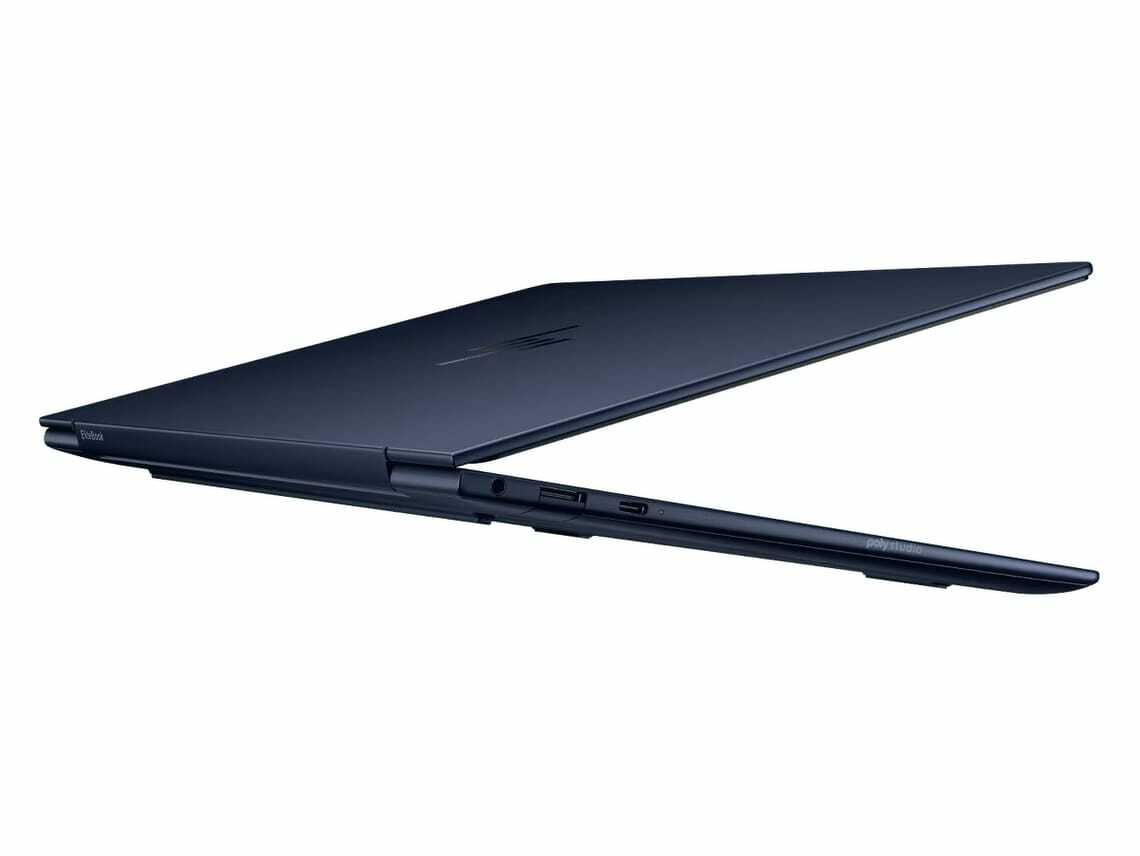
Port selection is generous for a modern laptop. On the left, there is an audio jack, a USB-A port hidden behind a pull-down cover and a USB-C port with a charging indicator. On the right, you will find two more USB-C ports, another charging light and a lock slot.

Like Apple, HP has dropped the microSD slot.

HP EliteBook Ultra G1 looks like it is made for business

Connectivity

The EliteBook Ultra G1 supports WiFi 7, putting it at the leading edge of wireless connectivity. While many users will still be on earlier standards, this ensures the laptop is ready for faster networks as they become more common.

Performance and battery life

On paper, the combination of an Intel Lunar Lake processor and 32GB of Ram suggests strong performance.

In practice, it is less impressive. Everyday tasks run smoothly, but at this price you might expect more headroom. Comparable MacBook Air models, costing significantly less, can outperform it in a range of applications.

One notable detail is how quiet the system remains. Even under load, the fan rarely makes itself known.

Battery life is solid. Around 14 hours of video streaming is realistic, which is enough for long-haul travel. It is not class-leading, but it is more than adequate for business use.

AI: not the main event

HP positions the EliteBook Ultra G1 as an AI laptop, but the reality is more modest.

The machine lacks a dedicated GPU and the Intel processor is not heavily optimised for AI workloads. As a result, it feels more like a traditional business laptop with a few AI extras.

HP’s AI Companion is essentially a branded interface for GPT-4. It requires an internet connection and offers little beyond what you can already access through standard tools, aside from some system-specific functions.

There is also a dedicated Copilot button for Microsoft’s AI assistant. It is convenient, but not a compelling reason to choose this laptop.

Security sets it apart

Where the EliteBook Ultra G1 distinguishes itself is security.

HP Wolf Security for Business adds multiple layers of protection beyond standard Windows tools. This includes anti-phishing measures, BIOS tamper protection and system hardening features.

The trade-off is usability. Security prompts can interrupt workflows, particularly when installing software that is not on an approved list. Unlike some systems, there is limited scope to override these restrictions.

For individual users, this may feel intrusive. For corporate IT departments, it is a significant advantage. The ability to manage and secure fleets of devices will appeal to organisations concerned about risk.

Verdict

The HP EliteBook Ultra G1 is a premium business laptop aimed squarely at corporate buyers.

It excels in build quality, security and manageability. Performance is competent rather than exceptional, and the AI features do little to justify the marketing emphasis.

For individuals, there are better-value options with more power. For organisations that prioritise security and control, the EliteBook Ultra G1 makes a strong case, even at a high price.

HP OmniBook Ultra Flip 14 review: a polished hybrid with long battery life

First posted February 2025: HP’s OmniBook Ultra Flip 14 is a thin, light and flexible 2-in-1 Windows laptop. Battery life is impressive for an Intel machine and the hardware rarely puts a foot wrong. Yet it falls short of HP’s promise of delivering “the ultimate AI experience”.

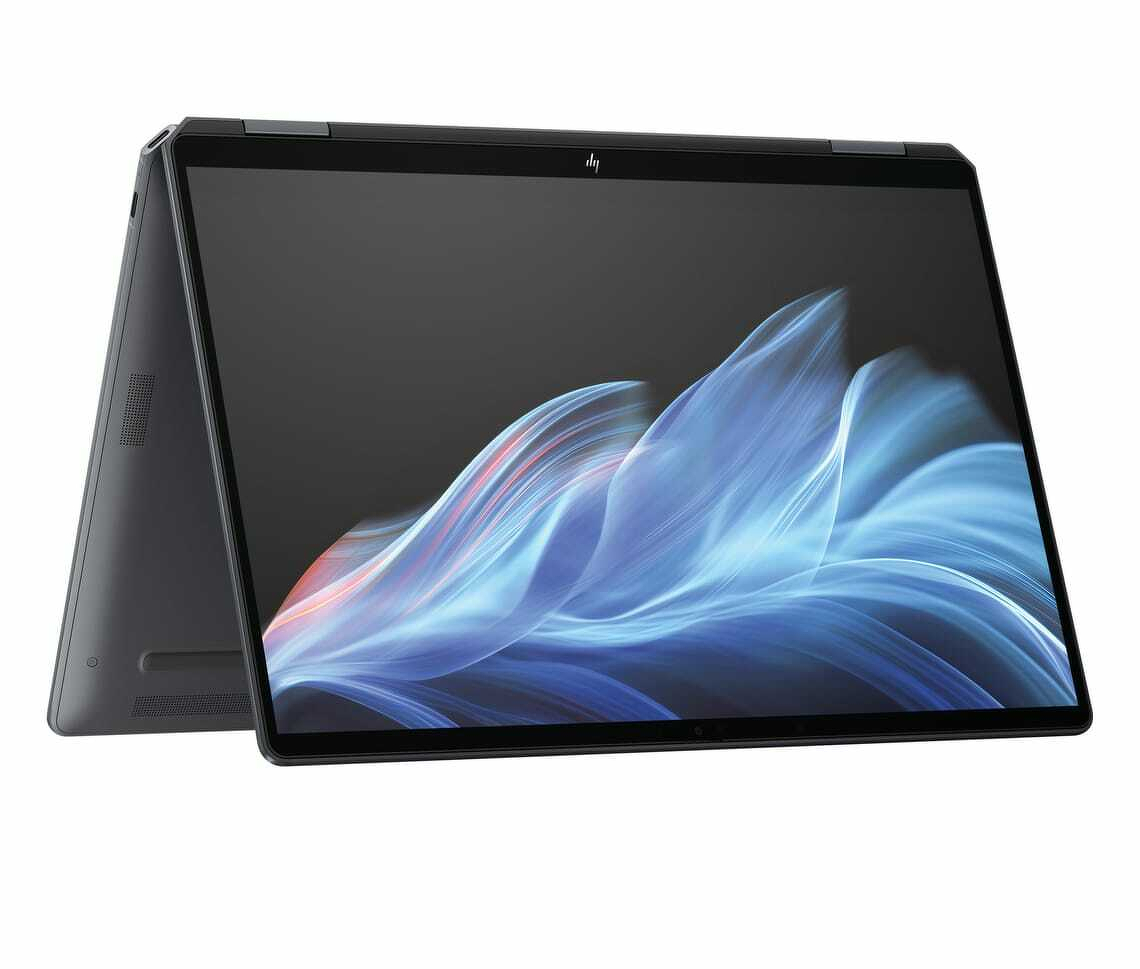
Auto-generated description: A slim, convertible laptop with a vivid display showing a dynamic, flowing blue abstract design.
HP OmniBook Ultra Flip 14

OmniBook Ultra Flip 14 at a glance

For: Long battery life, solid build quality, practical 2-in-1 design.
Against: Expensive for a consumer laptop, similar money buys more powerful hardware, underwhelming AI features.
Maybe: Odd port placement, Intel still comes with trade-offs.
Verdict: A strong choice if you want a thin, light Windows laptop with good battery life and full Intel compatibility.
Price: Officially NZ$3700, although retail pricing can dip closer to NZ$3000.

Familiar design, well executed

At first glance, the OmniBook Ultra Flip 14 looks like a business-class hybrid. In reality, it sits in HP’s consumer range.

The plastic chassis is a surprise at this price, but it works. Where some plastic laptops feel flimsy, this one is sturdy and well put together. It feels capable of handling the knocks that come with everyday travel.

The hinge is another potential weak point on 2-in-1 devices. During a month of testing, it proved reliable and smooth in operation.

As a hybrid, the device can be used as a standard laptop, folded flat into a tablet or propped up in a tent configuration. The latter may appeal for presentations, although it is not something everyone will use.

Display and everyday use

The 14-inch OLED touchscreen has a 2880 by 1800 resolution and supports refresh rates up to 120Hz.

Indoors, the display performs well. Colours are rich and the higher refresh rate helps with smooth scrolling and general responsiveness. Outdoors, it is usable in shade or overcast conditions, but struggles in direct sunlight.

Speakers are adequate for calls and general office work, although they sound thin when playing music. This is typical for laptops of this type.

The keyboard spans the full width of the device and is comfortable for extended typing sessions. The trackpad is responsive and accurate.

Price and positioning

With a list price of NZ$3700, the OmniBook Ultra Flip 14 sits in a competitive bracket.

At this level, buyers could opt for a well-specified MacBook Pro or a fully loaded MacBook Air. Windows alternatives include premium models from HP, Lenovo and Microsoft, some offering more raw performance.

The key distinction is the processor. While many rivals are moving to ARM-based chips, this model sticks with Intel. That means fewer compatibility concerns, even if it comes at the cost of peak efficiency.

Retail discounts make a difference. At closer to NZ$3000, the OmniBook Ultra Flip becomes easier to justify.

Performance and battery life

In everyday use, the OmniBook Ultra Flip 14 is quick and responsive. It handles typical workloads with ease and should remain capable for years.

Battery life is the standout. For an Intel-powered laptop, it lasts far longer than expected and comes close to what you might see from ARM-based machines.

For many users, this combination of performance and endurance will be more than enough. Those needing sustained high performance may still be better served by a business-class machine.

Windows 11 holds it back

The weakest link here is not the hardware, but the software.

Windows 11 continues to feel inconsistent. During testing, there were occasional crashes, including while the machine was asleep, along with driver issues that appeared without warning.

Even when stable, the experience lacks the polish found elsewhere. For users coming from macOS, the difference is noticeable.

AI: more promise than delivery

HP leans heavily on AI as a selling point, particularly through its integration with Microsoft Copilot.

In practice, this is not a compelling reason to buy the laptop. The AI features feel underdeveloped and add little to the day-to-day experience.

HP’s own AI tools are still in beta, which shows. Some features, such as performance optimisation, are difficult to assess and did not make a clear impact during testing.

For a device at this price, buyers could reasonably expect more mature software.

Verdict

The HP OmniBook Ultra Flip 14 is a well-built, thoughtfully designed hybrid with strong battery life and dependable performance.

It does not redefine what a Windows laptop can do, and its AI ambitions are not yet realised. Even so, the hardware is solid and the overall package is easy to recommend for those who want flexibility and full compatibility.

If you are committed to Windows and want a premium 2-in-1 with long battery life, the OmniBook Ultra Flip 14 is worth considering.```

2020 iPad Pro 12.9-inch review

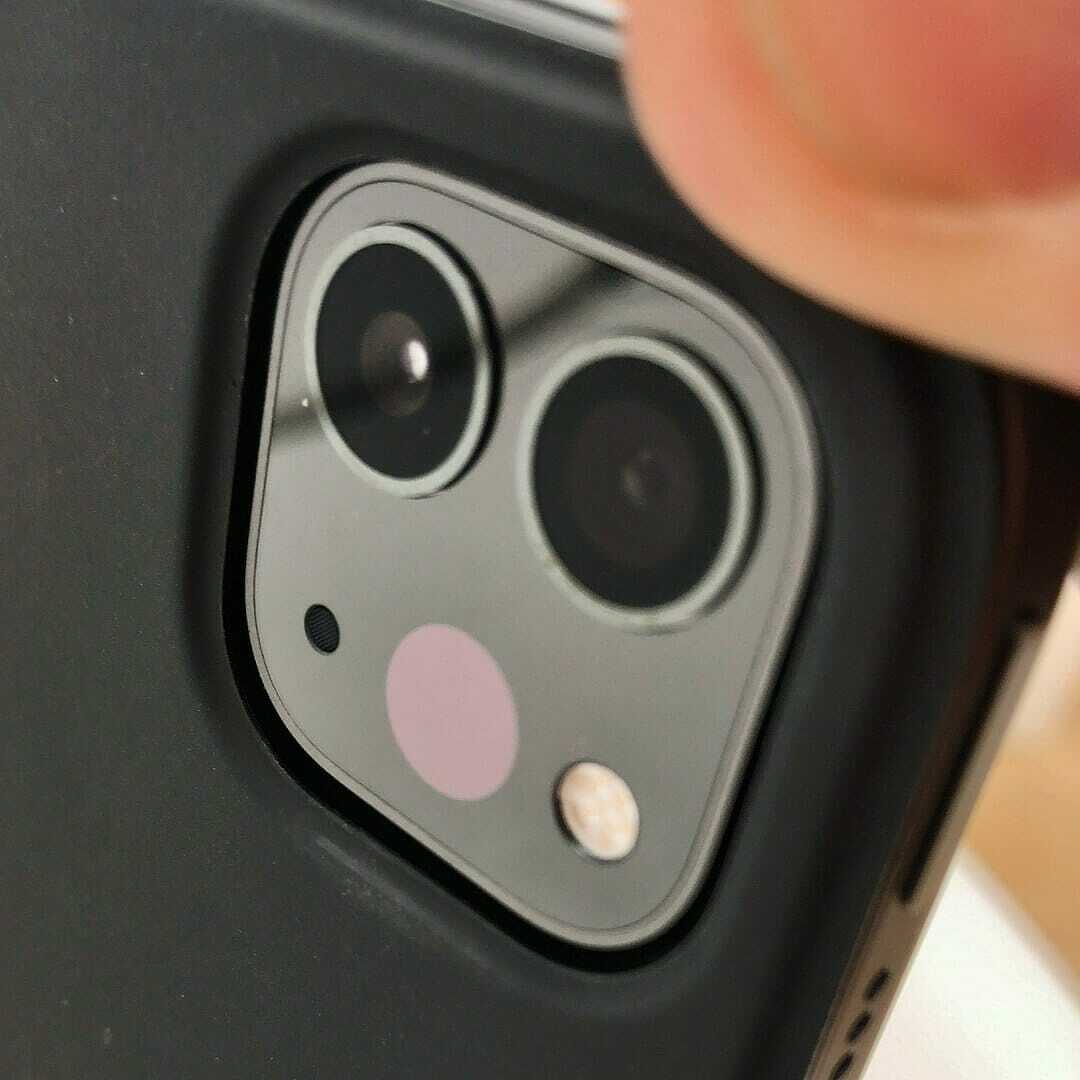
iPad Pro 2020 LiDAR Scanner and back camera.

Apple iPad Pro 12.9-inch (2020) brings a modest speed bump, a revamped camera system and full mouse and trackpad support.

Apple’s 2020 iPad Pro 12.9-inch is a refinement, not a revolution. The big leap came in 2018 when Apple rebooted the Pro line. That model pushed the iPad closer to being a genuine laptop replacement while keeping the strengths of a tablet.

For everyday tasks like browsing or writing, there’s little difference.

The 2020 update builds on that solid base. Most hardware changes are incremental, but iPadOS has matured into a more capable platform for mobile computing.

Everything that made the 2018 model great remains. The design is still one of Apple’s best, with minimal bezels, squared edges and rounded corners. It feels so right that it’s hard to imagine a better approach.

Performance

Bionic chip

The new iPad Pro uses Apple’s A12Z Bionic processor. On paper it improves on the earlier A12X, but in practice the gains are modest. There are still eight cores, split between performance and efficiency.

For browsing, writing or streaming, there’s little noticeable change.

Push it harder and the difference shows. Graphics-heavy tasks like photo editing run faster, audio apps feel smoother and demanding workloads are more responsive. Even so, the improvement is incremental.

By today’s standards it remains fast. It can outperform a 2019 MacBook Air (2019) with an Intel Core i3, although it doesn’t challenge Apple’s high-end laptops.

Battery life

Battery life is slightly down on the 2018 model, which could stretch to 10–12 hours depending on workload. The 2020 version manages a little over nine hours in regular use.

That’s still enough for a full working day, though no longer exceptional. Heavy apps can drain the battery in around six hours, while lighter use will comfortably last longer.

Cameras

Apple has focused more on cameras than raw performance this time. The rear now includes two lenses and a LiDAR sensor, following the same direction as recent phone upgrades.

The main 12-megapixel wide camera is unchanged. It’s good for a tablet, though not on the level of the iPhone 11. The new 10-megapixel ultra-wide lens is a first for iPad and proves useful, especially in tighter spaces or low light. It often works alongside the main camera to improve results.

Using a 12.9-inch tablet as a camera still feels awkward. Holding a device this size for photography is unnatural, and the controls are less intuitive than on a phone. For consistent quality, dedicated cameras remain the better option. For quick snaps or document scanning, the iPad does the job well.

Front camera

The front-facing 7-megapixel camera is designed for selfies and video calls. This is where the iPad Pro excels. Video quality is far better than on most laptops I’ve used, whether Mac or Windows. For remote work, it makes a noticeable difference.

Placement is less ideal. In portrait mode the camera sits at the top, but with a keyboard attached in landscape it shifts to the side. Software compensates, yet eye contact can feel off. To appear engaged, you need to look towards the edge of the screen.

LiDAR sensor

The standout addition is the LiDAR sensor. While it may eventually improve photography, its main purpose is augmented reality.

LiDAR, used in autonomous vehicles, measures distance by mapping the surrounding environment. On the iPad it can scan rooms with surprising accuracy. Apple’s measuring app works up to around five metres, which is ideal indoors but less useful outside.

It also opens the door for AR apps and games, letting you place virtual objects convincingly in real spaces. For now it feels like a bonus feature, but that could change as developers explore its potential.

Verdict: 2020 12.9-inch iPad Pro

The 2020 iPad Pro 12.9-inch is an incremental update to an already excellent device. The design remains outstanding, performance is strong and iPadOS continues to improve.

New cameras and LiDAR add interest, but they are not compelling reasons to upgrade from the 2018 model. Battery life is slightly weaker, though still solid.

If you’re coming from an older iPad or want a tablet that can double as a serious work machine, this is an easy recommendation. If you already own the 2018 version, you can afford to wait.

Scribble changes how you use iPad

Photo by Kelly Sikkema / Unsplash
Photo by Kelly Sikkema / Unsplash.

From September 2020: Apple's Scribble works better than you might dare to expect, it's fast and feels natural although it can get tiring over the long haul.

The first few paragraphs of this review were handwritten on an iPad Pro running iPadOS 14. Apple included a new feature in the operating system called Scribble.

It allows you handwrite in any iPad text field. Scribble then converts your handwriting into text.

Scribble works with the Apple Pencil. If you don’t own one, this a reason to buy the Pencil.

It doesn’t have to be the Apple Pencil, any powered iPad stylus will work. Scribble doesn’t work with fingertips or with passive styluses.

If you’re old enough and spent a lot of time with Apple hardware you may remember something similar was possible with the Newton MessagePad.

Impressive performance

Scribble works better than you might dare to expect.

It is fast enough to covert handwriting on the fly. Using it feels natural enough over the short haul. After a while writing with the Pencil can get more tiring than typing, although that may be unfamiliarity.

That could also be because I am a touch typist and have never been great at handwriting. In my case Scribble is an accurate description.

Either way, I gave up trying to write this entire post using Scribble at the sentence you are reading now. In other words, it’s good for a couple of hundred words.

Don’t plan on using it to write your magnum opus.

Scribble quick notes

To date I’ve found Scribble is excellent for making quick notes, filling in forms, compiling lists and the like. It excels if you need to pen a fast reply to an email.

While you can use Scribble in any text field, certain iPadOS apps have full support. The first paragraphs of this post were written directly into the Apple Pages word processor. If you own an iPad, Pages is free.

When you touch the screen with your Pencil while in a Pages document, the draw palette shows up. To choose scribble, you have to pick the leftmost pen tool, it has an A on it to make things clearer.

Reading my handwriting can be challenging at the best of times. Scribble got almost everything right for the first paragraphs. We’ll discusss the word almost in a moment. Where it doesn’t recognise your writing, you can quickly fix the text using one of four simple pen gestures. Newton owners might find them familiar.

Gestures

To delete a written word, you scribble over it. That’s straightforward enough and needs no training. You can select a word by drawing a line through it or by circling it. In practice the circles are easier and more accurate, although you may find otherwise. Inserting text works when you tap and hold the pen tip at the insertion point. A gap opens in the text and you can write in your extra text. Drawing a vertical line between text characters will either add a space to separate two connected words or open a space when two words are closed up.

It doesn’t take long to pick up these gestures, I was doing them all without a second thought before I stopped scribbling this post. There is one glaring omission. You can’t go to a word and, say, capitalise it. With the Newton you can turn a lower case character into a capital with an upward swipe. With Scribble you have to delete and write the word again remembering to use a capital initial letter.

You can’t Scribble everywhere yet

Scribble doesn’t work with all iPadOS apps. The software has to be enabled by the app developer. It doesn’t work with Microsoft Word or Google Docs. If history is anything to go by, third party app developers will embrace it over time. Other Apple iWorks apps can use it. I was pleased to find it works with iA Writer. And, as mentioned earlier, it does great service with the iPadOS Mail app.

Scribble is one of those features that you can overlook. Yet it has the potential to upend the way you work with an iPad. My favourite aspect of this is that Scribble makes it much easier to write on an iPad when you are standing. As a journalist this is something I need to do when on reporting jobs.

📢 Want to do more than Scribble? I've written a comprehensive to writing on an iPad.,

2018 iPad: More iPad, fewer dollars

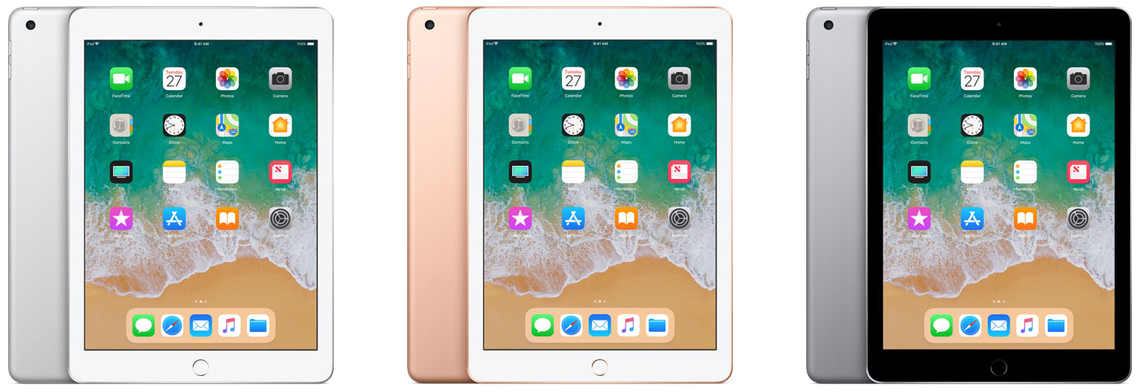
Apple’s sixth generation 2018 iPad.

This review was written in May 2018.

Apple’s sixth generation 2018 iPad is a bargain. In New Zealand it costs NZ$540. For many people it is all the computer they will ever need.

Sure, there will be people who consider it dull next to the swept-up iPad Pro. It doesn’t have as many features. Yet it does one important thing that, until now, only the Pro model iPad could handle. The 2018 iPad works with Apple Pencil.

That’s great if you want to use an iPad to create art or jot quick notes without adding a keyboard or dealing with the device’s glass keyboard. This, coupled with the price should open up the iPad to new audience.

It’s a solid, reliable alternative to buying a low-cost computer. Some geeks will hate me writing that.

With this iPad, Apple is doubling down on the strategy that made the recent iPhone SE so compelling; by pairing a powerful, current-generation processor with a tried-and-true physical design, Apple created a entry point into its world that doesn’t break the bank. It will pull new customers to the iPad.

Half the price of an iPad Pro

While the 2018 iPad doesn’t have all the features you’d find in an iPad Pro, it’s close to half the price of the cheapest Pro. The basic model $540 2018 iPad Pro comes with 32GB of storage. In contrast, the cheapest iPad Pro model costs NZ$1100 and has 64GB of storage.

There’s a NZ$700 version of the 2018 iPad with 128GB. If you can find the extra $160 it’s worth it. If you have a large library of music, videos or photographs you’ll soon bump up against the limits of 32GB. With a 128GB you won’t need to continually swap out files to a back-up device or the cloud.

What you get with both models is the classic 9.7-inch iPad Retina display. There are not as many pixels as you’ll find on the 10.5-inch iPad Pro, but the resolution is much the same. It has 2048 by 1536 pixels compared with the Pro’s 2224 by 1668. The 2018 iPad weighs exactly the same amount as the 10.5-inch iPad Pro; around 480 grams.

At 7.5mm, the 2018 iPad is a sliver thicker than the Pro which is just 6.1mm. That’s enough to notice, but not much of a compromise. It’s about 10mm shorter and 5mm less wide. This means you can’t swap covers or keyboards between the two devices. Not that many people will be doing that.

Adding a keyboard

And anyway, the 2018 iPad doesn’t have the Smart Connectors found on iPad Pro models. These make it easier to use a keyboard without resorting to Bluetooth. If you want to run a keyboard with the 2018 iPad there are dozens of options, many are excellent.

It’s a fine tablet for writing on.

The speakers are not as loud or as clear as you’ll find on an iPad Pro.

Another difference between the Pro and the 2018 iPad is that you only get a first generation Touch ID button. It’s a little slower than the newer version and more prone to stumble when you use a fingerprint to sign-in. This is noticeable in practice if you’re stepping down from a newer iPad Pro or have an iPhone 7 or 8.

There’s a software difference too. The 2018 iPad only allows two apps to appear on screen at any time. While the Pro models allow three, this is something I never use on my tablet. I doubt many others will miss it.

The 2018 iPad uses Apple’s A10 Fusion chip, it’s similar, but not as powerful as the A10x Fusion chip in the Pro model. In theory it doesn’t run as fast, you could probably prove this by running benchmarks. In practice, you won’t notice. I didn’t find any lag on the 2018 model, it doesn’t feel slower. In fact, when it comes to speed, it feels almost exactly the same as my first generation 9.7-inch iPad Pro.

Where the 2018 iPad fits

Apple launched the 2018 iPad with an emphasis on education. It’s a great choice for students. Apple critics will tell you the iOS operating system is a walled garden and restrictive. Although there is some truth in this, in practice iOS is as open to the rest of the computing world as all the alternatives. Chromebook, Android and Windows are all as flawed in their own ways – possibly more flawed given their business models.

I’ve spent much of the last year using a 12.9-inch iPad Pro as my main mobile computer. It doesn’t do everything I need, but for most purposes it is more than enough computer. It has travelled overseas and out-of-town with me several times. For the most part the limitations of the 2018 iPad would be the same. If you’re on a tight budget and don’t need a lot of fancy features it could be all the computer you need. It’s a great device for creativity, just don’t expect to edit movies on its 9.7-inch screen.

The key to the 2018 iPad is that you get a lot of computer for not much money. You can buy cheaper Chromebooks, Android tablets and, at a pinch, Windows PCs. Unless you’re looking for an app that doesn’t appear in Apple’s store, this beats all those devices for most people who have light computing needs.

One month with the Apple MacBook Air M3

Apple MacBook Air M3
Apple MacBook Air M3.

Posted in May 2024. From the outside, Apple’s latest MacBook Air appears identical to its 2022 counterpart. It has the same ports, a great screen, terrific keyboard and the best trackpad you’ll find on any laptop. It is still thin and light.

From the outside, Apple’s latest MacBook Air appears identical to its 2022 counterpart. It has the same ports, a great screen, terrific keyboard and the best trackpad you’ll find on any laptop. It is still thin and light.

Despite two years of hefty inflation, the M3 MacBook Air’s NZ$2050 starting price is unchanged. You could view that as a de facto price cut. Apple still offers the 2022 model with prices starting at NZ$1800.

The main change is the switch from the M2 to M3 chip. This brings a significant bump in power, depending on the application the laptop is anywhere from 15 to 20 per cent faster than its immediate ancestor. It’s a huge leap up from the M1 or Intel MacBooks.

Better WiFI

Other changes include a welcome upgrade to WiFi 6E. If your router supports WiFi 6E you’ll notice a huge jump in data speeds. My gigabit connection gives me more than 600 mbps direct to my home office.

Apple has also reconfigured the external monitor hardware so you can run two external screens from the M3 MacBook Air.

Beefing up the processor does not take a toll on the computer’s battery life, you can still get more than 16 hours use before needing a recharge.

You can be forgiven for thinking that a 15 to 20 per cent increase in power does not amount to much. Nothing could be further from the truth. For many years now Intel-based laptops have only managed low single digit increases in computing power between generations. Apple continues to squeeze performance from its chips.

The performance jump is immediately noticeable when moving between MacBook Air models. It is even more noticeable when moving from an Intel Windows laptop to the Air.

M3 MacBook Air closes gap with MacBook Pro

In practice it means the new MacBook Air can run apps that might previously have required a MacBook Pro. In the meantime the MacBook Pro has moved up to the point where it outperforms many “workstation class” Windows laptops.

For the past month the 13-inch M3 MacBook Air has been my main computer. During that time, I haven’t heard the fan switch on once. Indeed, I had to check to see if there is a fan in the case.

Apple says you can get 18 hours from a single battery charge. That may be true, but I need to have a brighter screen and find I can work for around 16 hours without needing to use the MagSafe cable. On a recent two-day trip away from home I took the wrong power cable and power anxiety only kicked in late on the second day.

Price

Prices for the M3 MacBook Air start at NZ$2050. That buys a computer with 8GB of memory and 256GB of storage. It’s adequate if you never run lots of apps at the same time and mainly use your laptop for the web, basic office applications and video calls.

Otherwise you’d need to look higher up the range. More demanding applications and practical multitasking require 16GB of memory. That takes the price to $2400. There’s also a 24GB option. You need to make the right call when you buy as the memory is not upgradable.

Storage

The base model’s 256GB storage is modest by 2024 standards. You could live with this if you don’t store many media files your computer. More likely you will need to buy more storage at the time of purchase. Like memory, this is not upgradable.

There are options with external drives, network drives and cloud services but these are clumsy compared with getting a bigger drive in the first place. I find 512GB is essential.

Adding 16GB memory and 512GB storage to an M3 MacBook Air lifts the price to NZ$2750. Apple sent a review model with 16 GB of memory and a terabyte of storage. This configuration costs NZ$3100.

There is a 15-inch model with prices starting at NZ$2500.

Premium laptop

These prices place the M3 MacBook Air firmly in the premium laptop bracket. That’s fine, it is more than competitive with rival premium laptops from the likes of HP or Dell.

People tend to think of Microsoft’s Surface Laptop as a direct competitor to the MacBook Air. Prices are similar. The base model Microsoft Surface Laptop 5 is NZ$2000 for a model with 8GB of memory and 256GB of storage. The M3 MacBook Air is considerably more powerful than the Surface Laptop 5 which feels like it is at least a generation behind Apple’s laptop.

M3 MacBook Air verdict

For now Apple’s M3 MacBook Air is the best all-round laptop in the world and certainly the best option in its price range. You won’t find a better blend of features, functionality and performance anywhere else. You’ll power through your daily work with ease.

Unless you work for an employer who insists on Windows, this would be a good time to think about jumping ship to MacOS. Apple either beats or equals every rival when it comes to the laptop’s keyboard, trackpad and the physical case. You won’t find a better screen or better speakers and its webcam is top class.

They don’t get much attention but Apple’s Touch ID and the WiFi 6E modem are also huge plus points. There is an attention to detail that rival laptop makers rarely match.

That said, it’s not cheap and it might be overkill for some readers. If your needs are not demanding and want to spend less, the M2 version costs NZ$250 less and has almost everything.

If M2 MacBook Pro can't tempt you from Intel, nothing will

In 2021 Apple moved ahead of the laptop pack with its M1-powered MacBook Pro. That model set new standards for processing power and battery life. This report from 2023 looks at how the M2 MacBook Pro takes performance and battery life further. It's not cheap, but the most demanding users will see it as a wise investment.

Apple-MacBook-Pro-M2-Pro-and-M2-Max
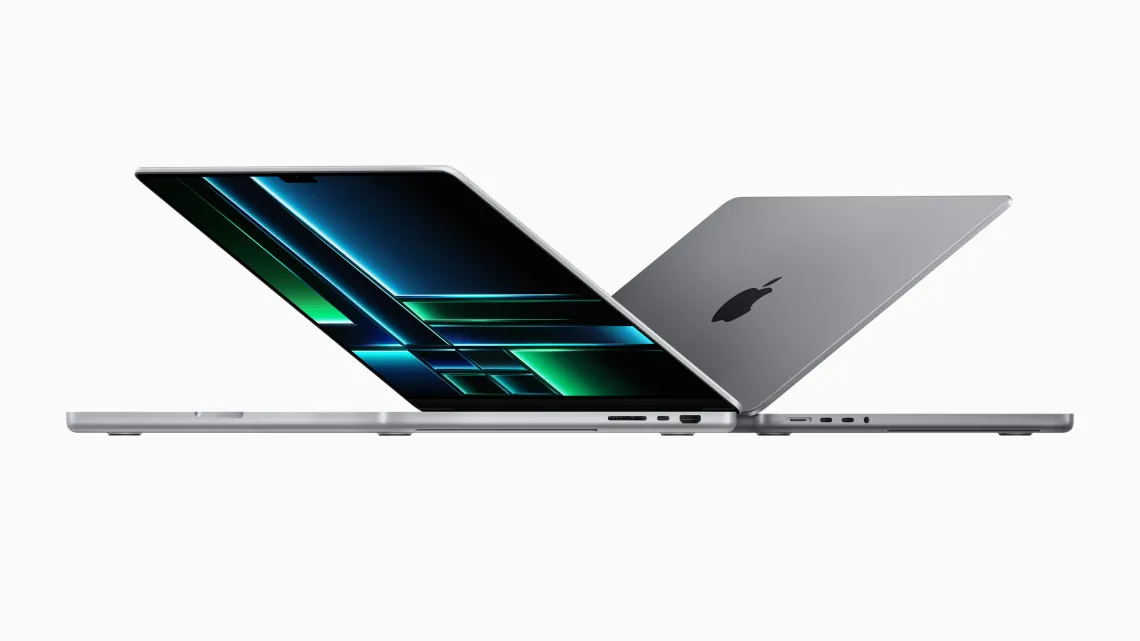
Apple MacBook Pro M2 and M2 Max

16-inch MacBook Pro at a glance

For: High performance, very long battery life, miniLED ProMotion screen, excellent speakers and great design. MagSafe.
Against: Expensive. Can’t upgrade Ram after purchase. No Ethernet port.
Maybe: Not compatible with Windows Boot Camp can run Parallels desktop. Webcam is excellent, but doesn’t feature Centre Stage.
Verdict: Every aspect is best in class. It’s an outstanding laptop for people who need power, but it comes with a hefty price tag.
Price: From NZ$4600. Review model costs NZ$6350.

At first sight Apple’s 2023 MacBook Pro looks identical to the 2021 model. Externally, little has changed and that’s no bad thing.

The 16-inch model has a full-size backlit keyboard (280mm by 115mm). It’s the best I’ve used on a laptop, with a precise, comfortable feel. A Touch ID key handles security, making logins and payments quick and painless.

The trackpad is large (160 × 100mm) and superbly responsive—again, the best I’ve seen on any laptop.

Apple’s Liquid Retina XDR display is stunning. It refreshes at up to 120Hz, with sharp text, vivid images and, if needed, searing brightness. Apple quotes a 1,000,000:1 contrast ratio. On the review unit the 16.2-inch screen delivers 254 pixels per inch.

There’s also an SDXC card slot. In testing, file transfers from an older camera card were effectively instantaneous.

Raw computing power

The review unit has a 12-core M2 CPU: eight performance cores and four efficiency cores. The 2021 model’s M1 Pro had 10 cores, so the newer chip adds two efficiency cores.

In practice, this MacBook Pro is about 20 percent faster than its predecessor. That’s noticeable, though probably not enough to tempt 2021 owners to upgrade. Anyone coming from an Intel MacBook will see a huge leap.

Benchmarks only tell part of the story, so I focused on real-world tasks. Using HandBrake to encode a library of DVDs for Apple TV, the MacBook Pro completed the job in less than a quarter of the time taken by my 2020 Intel MacBook Air.

It’s not a gaming laptop, but it handles demanding graphics work with ease. Rendering lossless audio from a digital audio workstation took a fraction of the time compared with the MacBook Air.

Beyond that, I struggled to find anything in my workflow that could push the M2 to its limits.

Outstanding battery life

The 100Wh battery combined with Apple Silicon’s efficiency delivers extraordinary endurance.

Apple claims up to 22 hours of video playback. In a controlled test, with WiFi and Bluetooth off, moderate brightness, video looping, the MacBook Pro ran for 27 hours, comfortably exceeding that figure.

In everyday use, writing, browsing, light photo work and background encoding, I saw around 16 hours. That’s roughly two full working days on a single charge.

Long battery life changes how you use a laptop. You stop thinking about chargers, power points or rationing screen time. It feels closer to using a phone.

It’s also enough to cover most of a New Zealand–Europe flight, assuming you sleep part of the way.

Fast charging

Apple’s 140W power adapter delivers a 50 percent charge in about 30 minutes, with a full charge taking roughly 90 minutes.

MagSafe has returned, which means a stray foot won’t send your laptop crashing to the floor. You can still charge via USB-C if needed.

Video camera

Laptop webcams are often poor, but not here. The MacBook Pro has a 1080p camera with a four-element lens. In video calls, others consistently reported clearer images.

That clarity can cut both ways: during one call, someone spotted a competitor’s product on a distant desk.

Like modern phone cameras, it uses computational video powered by the M2’s neural engine to improve exposure, colour and noise. You can’t easily judge that from your own feed, but the results are obvious to others.

macOS Ventura also lets you use an iPhone as a webcam. On this machine, the built-in camera is good enough that the feature feels redundant.

Speakerbox

Laptop audio is usually an afterthought. Here, it’s a highlight.

While testing FL Studio, I accidentally switched from headphones to the built-in speakers. The difference was striking: full, balanced sound with real bass, that’s something laptop speakers rarely deliver.

The six-speaker system (four woofers, two tweeters) handles music and video calls with clarity and volume, with little distortion even at higher levels.

Apple also supports spatial audio. With compatible content, the effect is impressive. It won’t replace a hi-fi, but it’s ahead of any laptop I’ve used.

WiFi 6E and Bluetooth 5.3

WiFi performance is strong. With WiFi 6E support, you can use the less congested 6GHz band, assuming you have a compatible router.

In testing, downloads peaked at over 920 Mbps on a gigabit fibre connection, matching wired Ethernet speeds.

Weaknesses?

There’s a good selection of ports, but no built-in Ethernet. That’s usually fine, but I still needed a dongle to connect directly to a network drive.

Memory and storage aren’t user-upgradable. While repairs are possible, unofficial upgrades may run into restrictions.

Running Microsoft Windows

Apple Silicon Macs can’t use Boot Camp. Instead, I used Parallels Desktop to run Windows. It works well, but it’s expensive and comes with licensing complexity.

VirtualBox is a free alternative, but the Apple Silicon version remains unstable at the time of writing.

Talking points

Verdict: 16-inch MacBook Pro

Apple’s 2023 16-inch MacBook Pro is an outstanding high-end laptop. It delivers immense performance and class-leading battery life, with few meaningful weaknesses.

It’s expensive. Prices start at NZ$4600 for a model with 16GB memory and 512GB storage. The reviewed configuration (32GB, 2TB) costs NZ$6350, while fully loaded versions climb far higher.

Even so, pricing is competitive with workstation-class PCs. If anything, Apple has the edge in performance per dollar.

Two months with an M1 MacBook Air

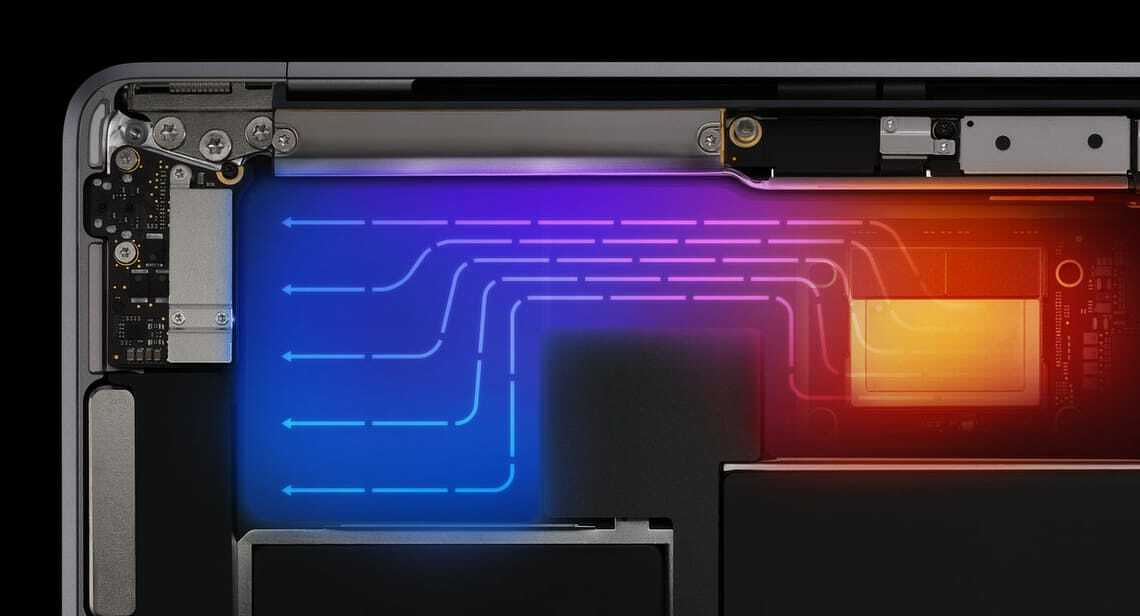
M1 MacBook Air Thermal

This unconventional review of the M1 MacBook Air, written February 2021, is about the experience. Think of it as a glimpse into a possible mobile computing future

At first sight there’s little to tell the new M1 MacBook Air from the most recent MacBook Air model. From the outside they are peas in a pod.

The only physical difference are the small icons printed on the F4, F5 and F6 function keys. You have to look to notice. They show controls for MacOS’s Spotlight search, dictation and Siri features. A globe printed on the function key at the bottom left of the keyboard tells you this can open an emoji picker.

Clues There are a few more clues to help distinguish the two MacBooks. The M1 model is much faster. We’ll come to that in a moment. The battery goes for hours longer between charges. We’ll look at that in more depth later.

Apple’s M1 MacBook Air is cooler and quieter. There is no cooling fan. It doesn’t need one. Mind you, the fan on the older MacBook Air doesn’t kick in until you push the hardware. With my writing work, that’s not common. I’m a journalist. I spend the bulk of my MacBook time writing. I prefer lightweight writing apps over the big, sprawling word processors. Yet there are jobs where I have to use Microsoft Word. In normal use none of the writing apps in my toolbox draw on enough resources for the cooling fan to kick in.

Goodbye humming fan To get the fan humming I’d need to run a media creation app or do a demanding spreadsheet or database task. It also hums when playing games.

That said, the old MacBook Air can still warm up during a lengthy work session. After two months with the M1 model, I’ve yet to detect the merest hint of processor heat. Given that I spend the bulk of my MacBook time writing, I didn’t expect to get much of a performance kick from the M1. After all, it doesn’t help me type faster.

Processor intensive Yet, in practice there are dozens of small processor intensive tasks that now work faster. I rarely used dictation on my Mac. It wasn’t great. It is now. The new MacBook Air shows how much processor speed changes that experience.

Likewise Siri. Because I’ve been a touch typist for years I tend to use keyboard commands others might prefer speech. Movies load faster. Complex web pages perform better. On the odd occasion where I need to edit a photo, clip audio files or chew through a lot of data it all happens at speed. I’ve never had a problem waiting for a MacBook Air to wake-up when I open the lid. It happens in a few seconds. With the M1 model, it happens in fewer seconds. That’s not a big deal, but I like it.

Pushing Safari The other effect is more subtle than that. I’ve learned not to have more than a handful of apps open at any given moment and to not push Safari by opening lots of tabs. That could test my old MacBook Air. These restrictions have gone. when. testing this, I got bored opening new apps and tabs long before the new Air began to struggle with the workload.

You can benchmark the new Macs to get interesting looking figures. These numbers may mean something to certain people. Yet I’d argue everyday use matters more: The new Macs offer a much improved experience. It feels more fluid, more natural, there’s less of a gap between what you might want from a computer and what you get. One aspect of the M1 Macs that worried users was the 16GB limit for system Ram. The MacBook Air never had more Ram, but MacBook Pro models could have 32GB. Desktop Macs could have 64GB. In the event, it’s not an issue. M1 Macs have a design that does more with less Ram. To my surprise I found I ended up more excited and enthusiastic about the new M1 MacBook Air than expected.

The new normal The problem with performance boosts is that higher speeds soon become normal. As an acid test, I fired up the old MacBook Air. I wanted to know different the new experience was. The test confirmed it, the M1 MacBook is much better.

There’s a link between a fast processor like the M1 in the new MacBook Air and gigabit fibre or Fibre Max as the Commerce Commission prefers us to call it. Few, if any, everyday applications that push a gigabit fibre connection to the limit. Yet having plenty of headroom means you’re never going hit a speed barrier. Likewise, even if you have modest computer needs, there are times when headroom is useful. Say you’ve spent months working from home on gigabit fibre. Then, say, you return to the office and a more modest connection speed. That connection now feels laggy and flat, even though it may be fast by accepted standards. That’s how the M1 MacBook Air feels after using the Intel model.

Battery One reason I switched from Windows to a MacBook Air seven years ago was the improved battery life. I could get more than ten hours from the MacBook. The Windows machine it replaced struggled to do three hours.

At that time I had a job working part-time in an office. I’d take my MacBook on the bus and work a full nine-hour day without hunting for a power outlet. Two years later the MacBook could still last the entire working day. It changed how I worked. The Air had enough battery life for a long-haul flight. Enough to work in the Koru lounge and for the trip to, say, Singapore with a few hours of down time for naps or meals. Apple’s M1 MacBook Air almost doubles that time. I won’t be taking any long-haul flights soon, but, if I did, it would get me to Barcelona or Paris. Working from home, I can go a couple of days without charging.

This is the start It’s interesting to realise that Apple used its new processors first in low-end models. There are M1 models of the MacBook Air, the entry-level 13-inch MacBook Pro and the Mac Mini. The message isn’t that subtle. If Apple’s low-cost laptops are this fast, what can we expect from more expensive models?

Which leaves us with another question. How is this going to affect the Windows laptop and PC market? At the time of writing, Apple’s low-end Macs are at least a generation ahead of Windows computers. When Apple releases its Pro model computers that gap could be wider. Let’s stop and qualify that last paragraph. The NZ$2200 eight core M1 MacBook outperforms almost every Intel-based laptop. This includes models costing twice as much. There may be faster Windows laptops out there. Good luck finding one.

Fanless Intel can’t build a fast fanless Windows laptop. The Air is silent. If that matters to you, that’s an Apple advantage its rivals can’t match.

When I first switched back to Macs from Windows, I configured my MacBook to dual boot Windows and MacOS. I stopped doing that years ago. If there’s a spare Windows licence in my home, I can no longer find it. Reports suggest a MacBook Air runs Windows faster than native Windows laptops. That has to rattle Intel. Last week Intel responded with its own set of cherry-picked benchmarks in an attempt to prove… well, it’s not clear what that goal was other than to muddy the waters. From a user point of view, you now need a powerful reason to choose a Windows laptop over a MacBook.

Pages 12 review: Apple’s overlooked free word processor

Apple Pages 12
Apple Pages 12

This post is from May 2022.

If you use a Mac or an iPad, Apple’s Pages 12 could be the only word processor you need. It’s free, easy to master and, unless you are a lawyer or an academic it includes everything you are likely to need.

Pages 12 at a glance

For: Free, great for layout, all the features most people need.
Against: Native file format, fewer features than Microsoft Word.
Maybe: Collaboration with other iWorks users, iCloud app.
Verdict: Good looking, easy to use. Pages is great option for Apple users who don’t plan to do complex word processing
Rating: 4.5 out of 5 – score is for Apple users.
Price: Free
Web: Apple Pages

You may already have Pages 12. Apple installs the software on new Mac computers. It doesn’t come preinstalled on new iPads or iPhones, but you can download it for free from the App Store.

There is a web version of Pages on iCloud that anyone can use, you don’t have to be an Apple customer. The web version works fine with Windows, ChromeOS or Android. You will need to sign up for a free iCloud account that comes with 5GB of storage.

Where iWork fits in the bigger picture

Pages 12 is part of iWork, Apple’s office productivity suite. It sits alongside Numbers, a spreadsheet and Keynote, a presentation app. The three are made to be used with each other and share many common ideas and controls. Learn to use one and you have learned them all.

For many Apple users Pages will be the only word processor you ever need. It integrates brilliantly across the various Apple devices and to iCloud. You can move from device to device and get the same user experience, Pages works much the same way everywhere.

The main alternatives to Pages are Microsoft Word, which is part of Microsoft Office and Google Docs which is part of GSuite.

Office and GSuite are not free, although there are free options. You may not find these free options enough for serious work. If you prefer free software there is LibreOffice.

Microsoft Office and LibreOffice offer more features, but many of these are not essential for everyday word-processing.

Is Pages as good as Microsoft Word?

The simple answer to this question is that it depends on what you want to do and who you work with.

Pages, Word and Google Docs each have a different central focus. Pages is all about putting words and pictures onto a printed or online page.

Its strength lies in layout.

You could produce an advertisement, a newsletter or a pamphlet faster with Pages than with, say, Microsoft Word and a layout app.

You might choose Pages as a low cost alternative to a professional design application like Adobe Indesign.

Compare Pages with Word

In comparison, Word has every conceivable word processor feature including many that you may never use. This makes it popular with large companies and professional users, such as lawyers.

It is a sprawling, complex comprehensive application. That makes it versatile, but it takes a long time to learn how to get the best from it. In comparison Pages is lighter and quicker to master.

Apple built Pages to work with its computers, tablets and phones. If you are familiar with these products, Pages will feel familiar. Microsoft developed Word for Windows computers. These days the Mac versions are far better than in the past, but there are times when that Windows heritage can confuse Mac users.

Is Pages better than Google Docs

Again, it depends what you want to do and who you work with.

Google Docs’s strength is in collaboration. Pages is great for collaboration if you only work with colleagues who use Macs. Otherwise it is not as good as Google Docs. Nor is Microsoft Word.

While Google Docs is good on a desktop or on a ChromeOS device, it is far from the best choice on a tablet or a phone. Google’s mobile apps are inferior to Pages or Microsoft Word. Pages works far better on Apple tablets and phones.

Likewise Pages is a long way ahead of Google Docs for layout and complex documents. In terms of features it sits between Google Docs and Word.

Using Pages 12

You can use Pages on multiple levels. Need to knock up a document fast? Pages can do this, it will guide you through adding typography and inserting images. You can power through the tasks in no time.

There are templates to help you get started. Pages has the best range of templates of any popular word processor and there are many more you can download from Apple and third parties.

When you first open Pages you’ll see a main window and a right-hand sidebar. This sidebar shows formatting and layout controls. If you want to focus on words, it is easy to hide the side-bar.

A second, optional left-hand sidebar can show comments and features like a table on contents.

Unlike other word processors, there isn’t a draft view. This can be annoying at first because, as the name suggests, Pages is organised around pages. And like every other word processor, that means it sees the world from a printed document perspective. No matter what you are working on, there can be headers and footers to navigate, even if you plan to build a single online-only document.

Working with others

Pages can opening and write documents for other word processor formats but has its own native format. Some features, largely to do with layout, don’t necessarily make it when converting to other document formats. And nothing else reads native format Pages documents.

This isn’t a problem in practice as long as you remember which features don’t translate. You can’t send a native Pages document to a colleague using Microsoft Windows and expect them to open it. There is a workaround, but it involves them signing up for an iCloud account and opening the document in the online version of Pages.

Life is far easier if you remember to save your Pages document in Word before sending. You can choose to send as PDF, text or RTF. Don’t expect your formatting to stay unchanged if you make a round trip where a colleague edits and returns the document.

The software picks up almost everything from other formats. You could, say, open a Microsoft Word document that has review comments and mark-up, then work through these in Pages.

Pages collaboration works fine if you work on the same document as a colleague using either Pages or the web app.

Pages for Mac, iPhone, iPad

Pages for Mac works really well. Yet Pages can shine on an iPhone or iPad, especially if you use one of them with a Mac. You’ll see a simplified view of the app, but all the desktop features are there. You may have to dig around to find them.

On the iPhone you can use a screen view designed to make editing easier. It hides the images and fancy features allowing you to focus on the text.

Apple has a feature on its operating systems called Continuity. It means that if you have Bluetooth switched on and both devices are on the same Wi-Fi network, you can move seamlessly from editing a Pages document on one device to another. Another feature called Handoff means you can pick up on another device where you left off.

It feels like magic to work on a desktop document at home and continue to edit the same document on your iPhone while riding on a train or bus to work.

If Pages 12 has a weakness it is dealing with long documents. It’s fine if you are writing anything up to a few thousand words, say a long essay, magazine feature or book chapter. Things break down when documents get bigger than this.

Reviewer’s notes

The iPhone and iPad versions of Pages have a useful Presenter Mode which can turn your device into a teleprompter or autocue. Words appear in big text without any images or distractions and you can make it automatically scroll down.

A recent update adds support for Apple’s Shortcuts automation tool.

Pages has support for language translation on the fly.

You can use Apple’s Scribble software with Pages on an iPad. It works with the Apple Pencil to turn handwritten notes into typed text. This feature is powerful if you want to add text to a document while you are standing up.

Pages is a good option if you plan to produce Apple Books.

Pages 12 verdict

If you live and work exclusively with Apple devices Pages 12 is potentially the best word processor for your needs. There are simpler alternatives, Markdown editors are a good choice if you crave simplicity and minimalism. And there are more complex alternatives, Word had more features. Yet for many users Pages 12 is a solid choice and it is free.

📢 For alternatives see: A Mac user's guide to word processors and other writing apps, and for iPad users: A practical guide to writing on the iPad.

Apple Pages 5 review

_This is an excerpt from an Apple Pages 5 review that was published July 8, 2014. _

Many long-term Pages users were not impressed when Apple updated its iWork word processor from Pages ’09 to Pages 5 in late 2013.

People who invested time and effort learning and mastering the earlier Pages ’09 version of the software found key features were missing. If they had written scripts, many stopped working.

In time the features returned. Apple drip-fed updates restoring much of what was missing in the first version of Pages 5. Pages: the name tells the story

Pages is not a standard word processor. The name is a giveaway. It is a page design tool first and a word processor second. It was first built to make works look pretty on the printed page. Later the focus shifted to creating good looking online documents.

It does this well. Pages is a low cost alternative to Adobe Indesign for people who need to make words and pictures look good, but who don’t need professional tools and don’t want to pay a lot for them.

It can deliver great looking designs. You don’t need to be an expert to get results.

As a word processor?

Apple talks about Pages as a word-processor. It is part of iWork along with the Numbers spreadsheet and the Keynote presentation manager.

Like it or not that puts it up against Microsoft Word, Excel and Powerpoint or Google Docs, Sheets and Slides.

Pages 5 does not feature collaboration tools like Google Docs. Nor does it have the heavy duty tools you’ll find in Microsoft Word. It’s more basic in these departments.

Writing space

You get a clean writing space and easy access to the controls needed for adding styles. It’s productive and trouble free.

You can work with documents that come from Word or Google Docs and you can send Pages documents back to these apps. You’ll even see many of the review marks from the other applications – although not all. There are few, if any, problems converting between document formats.

Tracking changes

It’s not the best tool for jobs where you need to track changes with clients, but it can cope.

Pages 5 is the best tool if you want to share and edit documents across a Mac, an iPhone and an iPad. There are apps for all three devices and they work much the same in each.

The big change in the move from Pages ’09 to Pages 5 is iCloud. You can choose to store documents on your Mac’s hard drive or to iCloud. This means you could start writing a document on an iPad at home. Pick up the document from iCloud on your phone while riding the train to work, then finish it off on your desktop Mac in your office.

Pages 5 verdict

Apple Pages 5 is free for Apple users. You can’t argue with the value. It is more than good enough for everyday writing jobs, can handle many, but not all, more difficult tasks and massively outperforms Word or Google Docs if you need to create a good looking layout.

If you are committed to Microsoft Word or Google Docs you may not want to switch, but the option is there should you need it.

Why I had to stop wearing the Apple Watch

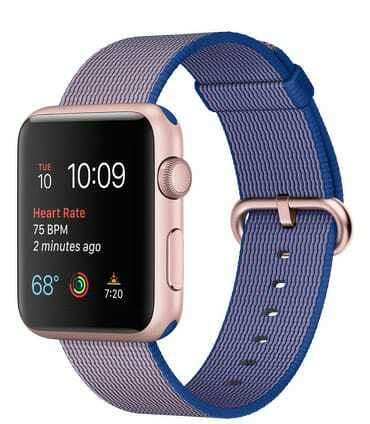
Apple Watch
Apple Watch

This post is from December 2015.

A few days after first wearing the Apple Watch I found myself scratching my irritated wrist. I took a break from wearing it and my wrist got better.

For a while I fell into a pattern of only wearing the watch when I worked away from home. At home, I’d leave it off. This runs counter to the idea of wearable devices, but it worked for me.

At least I thought it did. I was getting a mild rash and would find myself scratching my wrist and the area around it. But things seemed under control.

It turns out they weren’t.

Discomfort

There was still some discomfort. I took to loosening the band in case the problem was to do with it being too tight. My skin didn’t improve. In fact the problem got worse. I found the area where my thumb meets my hand was red and itchy.

At home, Johanna says she noticed swelling around my wrist, across the lower part of my hand and thumb. We compared my right and left hands. I wear the watch on the left hand, but am right-handed for most things. The left hand is clearly swollen in comparison with the right.

My instinct was to wear the Watch even less and keep an eye open for more symptoms.

Warning Will Robinson

Ten days ago I visited a medical specialist needing treatment for another medical problem. Like a lot of people he noticed my Apple Watch. I thought he was interested in the technology. He wasn’t. Instead he took a closer look at my rash and told me to take the watch off.

He told me I had an allergic reaction to the material. It could be the strap — my Watch has a black Sports Band. Or it could be the watch itself.

The medical specialist asked if my reaction had worsened over the weeks I’ve been wearing the watch. I couldn’t be certain, there’s a boiling frog aspect, you don’t notice a slowly worsening skin reaction creeping up on you.

After some thought, I realised it was getting worse.

Potentially serious

He said this could be serious. It turns out some allergic skin reactions have a cumulative effect. They can go on getting worse and reach a point where it is hard to recover. In extreme cases it can lead to anaphylactic shock.

Now, this was the doctor’s reaction after seeing the rash. I wasn’t there for this condition and we didn’t take things further. It wasn’t a formal diagnosis, just some friendly, informed advice.

Apple Watch allergy warnings

Apple acknowledges some people may have a reaction to the Watch materials. It says it went to great lengths to test and check materials first. The Apple Watch support website offers some advice on possible allergic reactions.

Material care

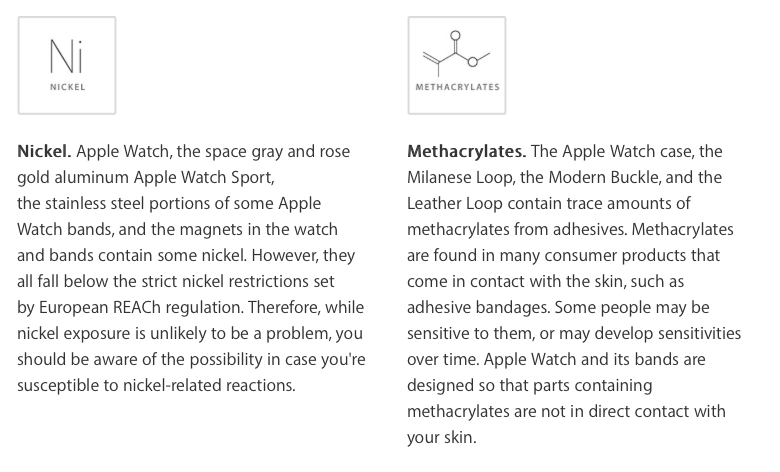
It says: “A great deal of care and research go into choosing materials for all our devices. A small number of people will experience reactions to certain materials.

“This can be due to allergies, environmental factors, extended exposure to irritants like soap or sweat, and other causes. “If you know you have allergies or other sensitivities, be aware that Apple Watch and some of its bands contain nickel and methacrylate.’

Apple suggests people who have problems should talk to a doctor before wearing or returning to wearing the Watch. I’ve done that and for me, the long-term review is over.

The best thing about the Apple Watch is that has made me more aware of my health. Some irony there.

Apple 2015 MacBook: Between laptop and tablet

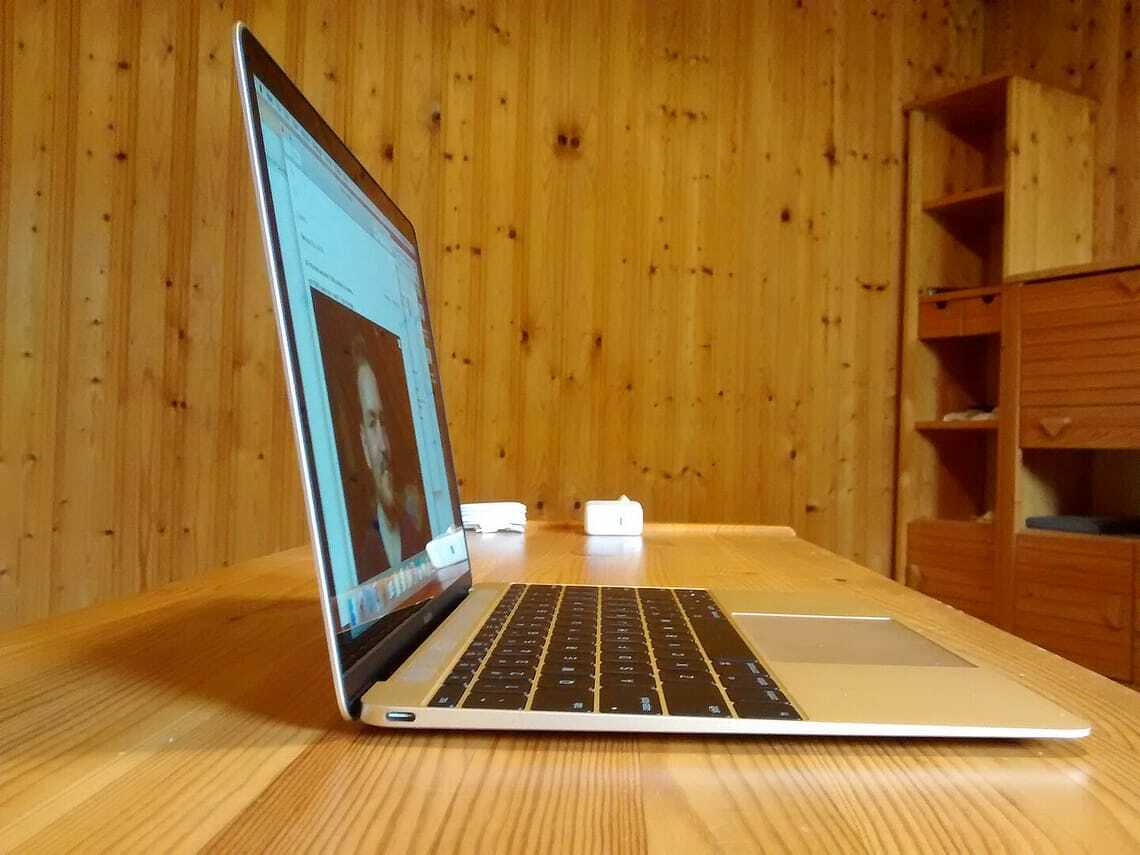
Apple 2015 MacBook
Apple 2015 MacBook - photo: Rüdiger Müller - CC BY-SA 4.0

This post was written in April 2015.

Apple’s newest lightweight laptop isn’t a MacBook Air. It’s simply called MacBook — a pared-down name for a pared-down computer.

It draws on ideas Apple developed for the iPhone and iPad. The result is a mobile computer as elegant, compact and polished as anything you can buy in 2015.

The new MacBook is thinner, smaller and lighter than any other laptop.

Not laptop, nor tablet, nor hybrid

In some ways it isn’t a laptop, at least not a traditional one. Nor is it a replacement for the MacBook Air.

It sits between the Air and an iPad with a Bluetooth keyboard running OS X. It’s laptop-like and tablet-like, but not a hybrid. Think of it as a new class of device for people who need more than an iPad and less than a full-blown laptop.

Built for mobile work

This isn’t a computer for everyone. The MacBook comes with compromises many won’t accept.

But it suits anyone who needs reasonable power on the move, say, a journalist working away from home. I took one to Wellington earlier this month to cover a conference.

Journalists were among the first laptop users. If you’ve ever carried a portable typewriter on a plane, you’ll understand why. On the road we value three things above all: portability, a good keyboard and enough power to run essential apps.

The MacBook ticks all three.

Portable

Apple designed the MacBook for portability above all else. Some reviewers worry about the keyboard. I’m fussy, yet had no trouble with it.

If there’s a weak point, it’s the processor. It’s fine for my work, but may not suit yours.

Small and light

It never occurred to me I’d want a laptop smaller or lighter than a MacBook Air. Then I met the MacBook.

My 2013 13-inch MacBook Air has travelled everywhere with me. It never felt heavy or burdensome. The MacBook doesn’t either — but it is lighter.

At 900g, it’s about a third lighter than the Air’s 1.35kg. On paper that’s significant. In a travel bag, less so.

You notice the difference more when carrying a backpack all day or using a briefcase. There the reduced weight means less strain — and, more than once, I found myself checking the bag to make sure the MacBook was still there. It really is that light.

You notice it immediately when holding the machine. The Air can be held one-handed, but not for long. The MacBook is easier to carry that way.

It’s also remarkably small. Despite the 12-inch screen, it has a smaller footprint than the 11-inch Air and is only a little larger than an iPad. At 13mm thick, Apple has effectively built a full laptop in something close to tablet size.

Built to travel

There’s more to portability than size and weight. The MacBook is beautifully made, with Apple’s usual attention to detail.

The anodised aluminium unibody feels solid and durable — important for a machine that spends its life on the move. It inspires confidence.

Battery life

Battery life is part of portability. My MacBook Air once ran all day — 12 or 13 hours — on a charge.

The MacBook doesn’t quite match that, but it gets close. On my Wellington trip it handled around 10 hours of solid work with charge to spare, including some time using cellular data after the venue WiFi timed out.

That’s good enough.

Keyboard

Typing is my trade. I write thousands of words a day and have done so since the days of manual typewriters.

So I pay attention to keyboards.

Despite criticism elsewhere, I had no problems with the MacBook keyboard after two weeks and around 10,000 words.

Apple says it designed the keyboard first and built the computer around it. That feels right.

The keys are larger, flatter and backlit individually. They travel less than traditional keys, which some dislike. I didn’t notice the difference.

There’s a short adjustment period — muscle memory takes time — but that’s true of any new keyboard. My typing speed didn’t suffer. If anything, it may have improved.

Trackpad

Until now, the MacBook Air had the best trackpad around. The MacBook’s Force Touch trackpad is better.

It responds to pressure as well as movement. A light press selects; a deeper press triggers extra functions like dictionary lookups.

It takes a day to learn, then becomes second nature.

Retina display

I’d seen Apple’s Retina displays before, but not used one for everyday work.

What surprised me wasn’t the sharpness, but how it changed the way I work. On the Air I tend to use full-screen apps. On the MacBook, the higher resolution makes it easier to juggle multiple windows on a small screen.

USB-C

The most controversial feature is the single USB-C port, which also handles charging.

It’s more versatile than older ports, but there’s only one. Apple expects you to rely on wireless connections and use adapters when needed.

So far, that works for me. My storage is mostly wireless. The only awkward moments come when connecting an iPhone or iPad — something I’ll deal with when necessary.

I do miss MagSafe. It was reassuring to know a power cable trip wouldn’t send the laptop crashing to the floor.

Reasons not to buy

This is not a mainstream laptop.

If you need power, look elsewhere. It will struggle with heavy tasks like video editing or large-scale image work.

If you rely on ports, the single USB-C connection may frustrate you.

And it isn’t cheap. At around NZ$2000, it carries a premium.

But “better specs” depend on what you value. If portability matters most, the MacBook delivers.

Should you buy one?

Maybe. It depends on your needs.

If you travel often, don’t need much processing power and can live without plugging in devices, it makes sense. Few laptops are this mobile.

If you were thinking of replacing a laptop with a tablet and keyboard, the MacBook is a compelling alternative.

Otherwise, stick with the MacBook Air or Pro.

For my work, the Air remains the better fit — but if I spent more time on the move, I’d choose the MacBook.

Apple's MacBook Air - the first year

This story was written in July 2014.

Last June I switched from a Windows 8 desktop, without a touch screen, to an Apple MacBook Air.

Four reasons prompted the move:

How did it work out?

Portability

Although I didn’t work away from home as often as expected, when I did, the MacBook Air’s thin, light design was everything I hoped for. It did service at four or five away from home conferences and many client offices around Auckland. I also used it on planes and in cafes.

Because I’m a journalist, I need a decent keyboard and a good, readable screen. While on paper Windows UltraBooks offer similar hardware, to date no-one has improved on the six-year-old MacBook Air format.

MacBook Air all-day battery

Battery life isn’t what it was. A year ago I could work more than ten hours on a single charge. Today there’s still enough juice to last a whole day away from home. I get about eight hours out of the MacBook Air now.

I rarely feel the need to pack a power supply when I’m working in someone’s office which means I can slip the computer into a neat leather case.

In part the shorter time is because battery life declines over time. However, I’ve changed the settings and now crank up the screen brightness which drains power faster. I also tend to leave Bluetooth and Wi-Fi on even when I’m not using them.

Even so, I’d say Apple more than delivered on its battery life promise.

Keyboard, screen

I worried about ergonomic problems when I moved from a Windows desktop with full keyboard to the MacBook Air. There were none. Even when I ran into serious eye problems earlier this year, the MacBook and its ability to zoom was just fine.

Some complain the MacBook Air doesn’t have the high-resolution Retina display found on the iPad Air or the MacBook Pro. Presumably a big increase in pixels would push the battery harder — I prefer to stick with the existing display.

One other point, the MacBook Air’s 3:4 format screen is better for writing than the thinner postbox-shaped displays found elsewhere.

OS X, applications

Moving from Windows to OS X didn’t present any serious problems. A year on I still have to look up how to do obscure, rarely performed tasks on the Macintosh operating system. But I didn’t experience any hiccups. OS X is stable, I can go a long time between reboots and I’m not always sure they are necessary anyway.

Microsoft makes it easy to switch from Windows to OS X. My Office 365 subscription means I have to put up with out-of-date Office apps.

When I wrote Two months with the MacBook Air I said:

The 2011 Mac version of Microsoft Office is a disappointment after the 2013 Windows version. I find myself using it less and less preferring other tools. Unless Microsoft fixes this, I won’t renew my Office 365 subscription when it lapses early next year.

That didn’t happen because my Office 365 licence is shared with the other computers at home and my iPad, iPhone and Windows Phone. Damn it, Office 365 is too good a deal. And anyway Microsoft says a refresh is due soon. Maybe. In the meantime, I’ve been using Apple’s iWorks software.

What happened since buying the MacBook Air?

Microsoft’s first generation Surface devices were on sale when I bought my MacBook Air. I passed over these because the original RT Surface was underpowered and the first generation Surface Pro was both a touch underpowered and overpriced.

Although Chromebooks are not ideal tools for journalists and professional writers, their throwaway price and ridiculously low management overheads make them worth thinking about. OK. I’ve stopped thinking about them. The keyboards, screens and writing software are not up to the job. Let’s move on.

To me the Surface sits somewhere between the MacBook Air and the iPad. It’s a tablet, but the letter box-shaped Window means it’s not so comfortable switching between portrait and landscape modes. It’s a tablet, but I bet few Surface owners choose not to buy the optional keyboard.

Microsoft Surface

In practice Surface feels more like a touch screen laptop. I’ve nothing against touch screens. They have their place, but when you bang out words for a living, you don’t want to move your fingers too often from the keyboard to the screen. When I spent time with a Surface I ended up with horrible wrist pains from that action.

Despite all that, second generation Surface devices — and more recently the Surface Pro 3 — are fine alternatives to the MacBook Air. Surface would be my second choice behind a new MacBook Air.

Three things give the MacBook Air an edge:

A better, squarer display is important for writing. I need to see more lines of text and not a greater width of text. Incidentally, it’s harder to proofread across a wide measure. And the 13-inch screen makes for better writing productivity.

Microsoft’s newer Type Cover 2 keyboards are better than most tablet add-ons, but they are not as good for my kind of bashing out words typing style as the MacBook’s keyboard. Also, having the keyboard as an add-on means there’s something that conceivably could get left behind. I can’t risk that.

Microsoft’s Surface makes the MacBook Air look inexpensive. A 2014 MacBook Air with 13-inch screen and 256GB storage costs NZ$1650. A Surface Pro 3 with the same storage and a typewriter style keyboard is 25 percent more expensive at NZ$2077.

One year on

So far I’ve not mentioned what is perhaps the most important aspect of owning any work computer: productivity.

Life with the MacBook Air is more straightforward than my time with Windows. I doubt I’ve spent more than an hour or two doing anything resembling maintenance since I got the computer. In contrast I spent a couple of hours last week fixing a minor problem on my daughter’s Windows laptop.

The hours I’ve regained are more than worth the price of the computer. At the same time, OS X does better at getting out-of-the-way than Windows. There’s a better focus on the user interface and that leads to greater productivity. On the flip side, there’s less flexibility, but that’s not what I look for in a work tool.

After one year I’m still convinced I made the right decision with the MacBook Air. I’d certainly buy another, perhaps after the next refresh or the one after that.

Satechi's 165W charger powers devices faster

First posted March 2023.

If you need to charge a handful of devices at the same time and in a hurry, Satechi has the answer.

The product’s name, Satechi 165W USB-C 4-Port PD GaN Charger, spells out what it does and how.

From the top: There’s 165 Watts of power. That’s a lot. In comparison the 2023 16-inch MacBook Pro includes a 140W charger which is considered a lot by modern laptop standards.

More power means faster charging or charging more things at once. We’ll get back to that in a moment.

USB-C means it works with almost every modern device. Today’s laptops, tablets and Android phones use USB-C. Apple’s' iPhone is one notable exception although reports suggest it will switch with the next generation.

Not that it matters in this case, because the iPhone’s current Lightning connector cable has a USB-C port at the end that plugs into a charger. My Apple Watch is harder to accommodate. It has a USB 3.0 plug. There are compatible USB-C cables, but in my case I used a USB 3.0 to USB-C adaptor.

The review Satechi charger has four ports which means you can charge your laptop, tablet, phone and smart watch at the same time. It automatically configures the power output depending on what is connected and can use one of these schemes: 100W, 100W/60W, 60W/60W/45W or 100W/30W/30W, 60W/45W/30W/30W, up to a total of 165W.

Satechi uses Gallium Nitride (GaN) technology which replaces silicon-based semiconductors. This is used to make blue LEDs, there’s one on the case to drive this point home.

Gallium Nitride can work at higher temperatures and higher voltages than traditional power semiconductors. In practice the charger doesn’t tend to heat up as much as conventional chargers, even when it is working at full capacity.

Satechi’s marketing is understandably geared towards selling the 165W charger on the back of its fast charging and power efficiency. As we’ve seen, it delivers in both departments.

There’s another less obvious benefit. Peek under the desk in many home offices and there will be a rats' nest of cables, charging plugs and distribution boards. They can be the worst places for collecting dust and quickly become unsightly and unhealthy.

The Satechi four port charging hub can replace more than four traditional cables. You can rationalise your cables and chargers, sweep away the distribution boards and simplify the home office.

Talking points:

Sony WH-CH520 review: Low-cost headphones

Sony WH-CH520 review: Low-cost headphones

Originally posted in April 2023, the Sony WH-CH520 are a pair of decent sounding headphones from a known brand at a low price. While there are few features, you won’t find better headphones for under NZ$100.

If you are on a tight budget and looking for decent Bluetooth sounds, the NZ$89 Sony WH-CH520 headphones are hard to walk past.

That money won’t get you active noise cancelling or fancy features. It does buy up to 50 hours of battery life, Sony’s Digital Sound Enhancement Engine1 and Bluetooth Multipoint which eases the handover as you move between devices.

There is voice control and the WH-CH520 will work with Sony’s Headphones Connect app.

You can buy the WH-CH520 headphones in four colours. There’s black, white and beige. Sony sent a blue pair for testing.

Surprisingly good sound

The sound is surprisingly good. You’d need to spend three or four times as much as you pay for the WH-CH520 to get a noticeably better sound.

You’ll be more than satisfied using the headphones to listen to voice calls or Zoom calls. The built-in microphone is average. You may be better off using your phone, tablet or laptop mic.

Headphone and earbud makers have a habit of boosting the bass and treble, occasionally pushing headphone speakers beyond their natural range and introducing distortion. Sony hasn’t fallen into this trap.

Balanced

Instead you’ll hear a pleasing well balanced sound. It’s not as natural as you might get from more expensive headphones and there’s a lot of audible compression, but you’d expect that in this price range.

You’ll be happiest if you listen to pop music or the less bass-heavy EDM. Mainstream rock works well, although prog rock fans might hit against the headphones’ limits if the music ventures into classical territory.

Classical music is less satisfying. If you are a fan then you would be better off spending more on headphones. Likewise, if you want lossless digital music or spatial audio, you should shop elsewhere.

Sony’s DSEE is optional. You can select it from the headphones app. Sony says it puts back the detail that is lost when music is compressed. In testing this was, at best, marginal.

This could be down to the specific tracks tested, despite running through a range of styles. What you do get from DSEE is a fraction more warmth. It’s nicer with DSEE than without, but the feature doesn’t take the headphones up a class.

DSEE Engine, is a Sony technology that improves the sound quality of compressed audio files. It restores the high-range sounds removed by compression.

Sony WH-CH520 headphones look good

The WH-CH520 headphones may be cheap, but they don’t look it. At least not at first. They may get scruffy with use, but from new they look classier than $89 suggests.

At the same time they are more comfortable than alternatives in this price range. They have decent cushioning and fit well on a standard head. If you have previously used more expensive headphones you’ll notice a difference. If you are new to Bluetooth over ear headphones it won’t bother you. Once again, you’d need to spend a fair bit more to get a better feel.

One area where the cheapness shows is the on-off and volume controls. There are trickier to use than those on more expensive headphones, at times you can press the buttons and nothing happens. Other times you can overcompensate and blast your ears with sound.

Verdict: Sony WH-CH520

These are decent sounding headphones from a known brand at a low price. While there aren’t many features, you won’t find better headphones for under NZ$100. A safe, affordable choice.

More on consumer audio and wearables:

LibreOffice 7: First impressions of a solid update

Last month The Document Foundation released LibreOffice version 7.0.1.

Taken at face value it is a free, open source office suite. It is interesting on many levels. You should consider downloading and investigating the software, it won’t cost you anything.

LibreOffice is not right for everyone. Yet it is an important alternative to Microsoft Office, Apple iWork and Google G suite. There are versions of LibreOffice for Windows, MacOS, ChromeOS and Linux. Android and iOS uses can get versions from Collabora. This is also a paid Enterprise edition.

Free as a starting point

LibreOffice is free. There was a time when free was its main attraction.

The world needed a free alternative to Office because people found Microsoft expensive. Many still do.

The Document Foundation, the not-for-profit organisation behind LibreOffice, asks people to donate to help pay its bills. That’s fair enough, especially if you use LibreOffice in business.

Open source

These days open source is often more important than free.

The importance of this control was recognised early—back in 2000, Bob Bishop predicted that countries like Russia and China would embrace Linux specifically because being “open” mattered more than being free.

Open source means you can get the code and tinker with it if you wish. You may be able to improve it, add features or otherwise tweak it to do things the original developers did not.

Being open has broader advantages than being able to rewrite code. As Dave Koelmeyer pointed out after I looked at LibreOffice 5.2, it uses open standards throughout. You get full document interoperability.

LibreOffice won’t lock you out because of proprietary traps. Microsoft Office and other proprietary suites don’t trap you as much as in the past, but risks remain.

There is a security angle: Governments and many large companies can be wary of proprietary software. This is even more the case now that cloud computing plays a large role. They fear their data might find its way into a remote data silo and be vulnerable. Microsoft has talked about Office being able to connect to Linkedin. Google can sift through data looking for advertising sales leads and so on.

With LibreOffice, open means everything is transparent.

When you don’t want clouds

Microsoft and Google want you to move everything to the cloud. That’s where they see the future. Google has never favoured the desktop. Microsoft now sees desktop versions of Office as a last resort.

There are cloud options for LibreOffice, but it is the last remaining cross platform old-style office suite that lives on your computer. No other office suite leaves you this much in control of your destiny.

More compatible than ever

Speaking of Microsoft Office, LibreOffice has boosted its compatibility with the popular commercial suite. The Document Foundation says it has better compatibility with docx, xlsx and pptx files.

Earlier versions of LibreOffice didn’t lag when it came to Microsoft compatibility.

The main difference this time is that you can save docx in native 2013, 2016 or 2019 formats. In the past the best option was the 2007 format.

Open Document Format

LibreOffice 7 now supports the 2019 Open Document Format. It uses this as its standard document format. You can add digital signatures and use document encryption.

Graphics are better supported in LibreOffice 7. There is Skia, an open source graphics library you can use to draw shapes. Vulkan is an addition to add graphics acceleration.

Although LibreOffice 7 has been around for a while, it is not the right version for everyone. Version 7, or even the version 7.0.1 that I downloaded last week, is somewhere between a beta and the finished product.

The Document Foundation says it is for the “technology enthusiast, early adopter or power user”. On the download page it recommends everyone else, including business users stick with LibreOffice 6.4.6 for now. The time for others to move will be when 7.1 arrives.

Historic criticism

In the past I’ve written about two aspect of LibreOffice that I don’t like. There has been a lack of polish and the software has felt cluttered and over complex.

Readers disagreed with both these criticism. The first is no longer the case. The software looks and feels as polished as anything in the proprietary world. The font support needs work, some typefaces don’t look as crisp as they should. But that’s a minor niggle. As for the clutter: If you don’t want clutter and complexity you shouldn’t be looking at an office suite. This software category is all about complexity.

That’s why I don’t use an office suite for my writing. That said, I have to work with Word or Google Docs when collaborating with clients. For now, there’s an online LibreOffice for collaboration. It is not as developed as the proprietary alternatives. It’s no accident that Office has become far cheaper since LibreOffice has been a viable alternative.

Sony WF-1000XM4 noise cancelling ear buds review

This story was originally posted in June 2021.

Sony WF-1000XM4 noise cancelling ear buds
Sony WF-1000XM4 noise cancelling ear buds.

At a glance

For:Great sound, best wireless ear bud noise cancellation, long battery life.
Against:Microphone less than wonderful, expensive, possibly too big for people with small ears.
Maybe:Could be more comfortable. You either love of hate the look.
Verdict:Excellent if you’re prepared to pay for better noise cancelling and sound quality.
Rating:5 out of 5.
Price:NZ$500.
Web:Sony NZ.

Sony’s WF-1000XM4 noise cancelling ear buds are a revelation. There may be ear buds with better sound quality and noise cancellation. But I have yet to hear them.

Sound quality and excellent noise cancellation comes at a price. At NZ$500, they are expensive. That is NZ$50 more than the price of Apple’s AirPod Pro. It could be more than you’d pay for a phone. What do you get for $500?

Size, design

Sony’s ear buds are bigger than AirPod Pros and heavier. In use they feel bigger and heavier. This makes them less comfortable, but not to the point that becomes an issue.

The WF-1000XM4 weigh 7.3g. With the charging case the total is around 41g. This compares to the AirPod Pro at 5.4g for the ear buds and 46g for the case.

Sound quality

That extra bulk is put to good use. Inside the ear bud are 6mm drivers that handle a wide frequency range. Sony has coupled these with its integrated V1 processor, it handles the music in real time.

The result is outstanding sound quality. You’ll get plenty of detailed sound. It’s hard to fault the quality. But if you don’t like what you hear first time, you can adjust the sound to better fit your tastes.

On my first try, I tested the WF-1000XM4 on factory settings against a set of corded studio monitor headphones. These have a flat response. I was listening to melodic house music and indie rock on Apple Music.

Sound Colour

It sounded great, but I could tell the ear buds added a few dB at the bottom and the top of the range. This makes them good for listing to modern music. Your taste may differ, but it felt like there is too much colour for softer classical music or jazz.

To fix this I turned to Sony’s Headphone Connect app. You would need to download this from the Apple or Google Play App Store. Here you will find a ‘sound’ tab. This takes you to an equaliser.

There are a series of presets which cover various types of music and two slots for you to customise the sound. This can all get fussy and tricky. Yet the software does a fine job of learning your tastes and needs and adjusting things.

Loudness

With other headphones and ear buds you often need to push phone, tablet or computer sound output towards the higher volumes to get the best quality.

In practice the WF-1000XM4 work best at around two-thirds to three quarters on the dial. Go higher and you may run into distortion. Likewise, the sound leaks at high volumes.

Noise cancelling

To make the most of noise cancelling, you need the ear buds to have a tight fit. Sony provides three sizes of tips and an app to help you get the best fit. I didn’t fly anywhere during the testing period. If I do, I’ll write an addendum to this post.

Instead I travelled around Auckland on a series of buses to give the noise cancelling a workout. For extra testing I worked for an hour in a noisy downtown coffee shop. There I barely heard a whisper as the barista hissed the espresso machine and called out orders. There was nothing to fault.

They do a fine job. When I read the marketing blurb, I suspected Sony might be talking up its noise cancellation. In use, the ear buds live up to the promise.

AirPods Pro comparison

If you are a committed Apple user, you might not choose the WF-1000XM4 in preference to the AirPod Pros. There are far too many Apple ecosystem advantages from staying with the brand.

AirPods are lighter, more comfortable and have terrific noise cancelling. That said, there’s no question the newer WF-1000XM4 beat Apple’s 18-month-old AirPods Pro on sound quality. They could be a smidgeon ahead on noise cancelling.

AirPods handle transparency and, so long as you have an iPhone, do phone calls better. The technology is improving fast. It will be interesting to see what Apple can do if it updates the Pods.

Minor niggles

The WF-1000XM4 ear buds arrived in a box that is 350 x 120 x 70mm. That’s a lot of packaging for ear buds. This compares with 100 x 100 x 50mm for Apple’s AirPods Pro. This may be special review packaging with consumers getting a smaller box.

If there’s an area of weakness it is the microphone. Sure, it isn’t important to talk in high definition sound in a phone call, but Sony is a distance behind Apple in this department.

The technology does a good job of capturing your voice among all the background hubbub, but it can make you sound robotic. It could be too much compression. Whatever the reason, it’s a minor negative.

Unless you plan to use your ear buds to make live radio crosses back to the studio, you can dismiss this as a problem. WF-1000XM4 comes in a white version and a black version with copper coloured highlights. No-one would mistake either for AirPods. Verdict – Sony WF-1000XM4

If you don’t live in Apple’s world and you’ve got the budget the WF-1000XM4 ear buds would have to top your list. They tick the important boxes: sound quality, noise cancelling and enough battery life for a flight from New Zealand to Europe.

Dragon Anywhere review: Superb iPhone dictation

Originally posted August 2018.

At a glance

For: Impressive performance, accurate speech recognition, improves with use, fast.
Against: Needs a live internet connection, expensive subscription model.
Maybe: Struggles with New Zealand place names, but that’s understandable..
Verdict: Works well. Whether it is worth the subscription price depends on how much use you get from it.
Rating: 4.5 out 5
Price: NZ$240 a year.
Web: Dragon Anywhere

Dragon Anywhere is a speech-to-text dictation app for iOS that can transform how you work. It’s a version of Nuance’s Dragon speech recognition software.

It needs to deliver: an annual subscription costs a NZ$240.

At that price, Dragon Anywhere is not a buy, try, forget app store experiment. It’s a significant investment. It needs to earn its keep.

Worth the money?

For some people, Dragon Anywhere will be worth every penny. Accurate speech-to-text software can unpack new levels of productivity. Yet not everyone will see a return on the investment.

If you already use desktop dictation software, you’ll have an idea of what Dragon Anywhere can do.

Being able to dictate text to an iPhone is a bigger deal than it might sound at first hearing.

The designers made the iPhone for dictation. Writing on a tiny glass keyboard is a challenge if you want to do anything more than send a text or a tweet.

I’ve written 1000 word stories on the iPhone. It’s not fun, nor is it productive. The alternative to dictation is carrying a Bluetooth keyboard. That can be a pain.

It also means you can replace desktop dictation with your iPhone. Given that your phone goes everywhere you do, it means you can produce text almost anywhere. This explains the product name.

You could, for example, write while in the back of a car or lounging in bed. In practice using the iPhone for dictation feels more natural than using a desktop or laptop Mac.

Anywhere

Mobility is important, because ideas do not work nine-to-five in an office. Your writing muse can turn up unannounced at any time. With Dragon Anywhere you can jot down your ideas as they appear. There’s no need to hunt around for a computer or a pen and paper.

Your phone is already your most important computer. Dragon Anywhere takes that further. Depending on how you work, you may be able to ditch the desktop altogether. Although if you don’t want to, Anywhere integrates with Nuance’s desktop dictation applications.

If Dragon Anywhere save you buying a new computer, the subscription starts to look like a bargain. Even if you don’t go that far, your typewriter keyboard may gather dust.

Dragon Anywhere works where there’s a connection

The software doesn’t quite work anywhere. Dragon Anywhere calls on Nuance’s cloud resourced to work its magic. That means you can only use it when you have a live internet connection.

It sips data. You might run through a megabyte or so dictating thousands of words. After an hour’s use, my data consumption was still measured in hundreds of kilobytes.

The phone to cloud round trip is fast. Speak a sentence or two, pause and the text is there on screen. It takes seconds. I found I couldn’t dictate fast enough to get ahead of the cloud connection.

In other words, you can use Dragon Anywhere while you’re on the move. If you have anything but a minimal data plan you can use it without counting the bytes or hunting for WiFi.

Nuance says it encryopts connections, so criminals can’t listen in on your dictations.

How well does Dragon Anywhere perform?

The performance is impressive. I used it to write a first draft of this review. From the first words I uttered it was catching almost everything without error.

The software stumbled over the word iOS in the first sentence. To be fair, it’s a specialist word. If you think of how you say the name: eye-oh-ess, not picking it up it understandable.

User error

It wasn’t the software that stumbled in the second paragraph. I can take the blame for not figuring out how to say NZ$240 in a way that made my meaning clear. Put this down to user error.

The third sentence was perfect.

Out of the first hundred words, Dragon Anywhere got everything except iOS right. That’s impressive. Remember this was my first try of the software. The software had not encountered my voice or accent before.

In practice it learns as it goes along. To see how this worked I read the words again and this time Dragon Anywhere scored a perfect 100 percent. It understood iOS. The software understood my speech far better than Apple’s Siri.

If you make an error, fixing your text is easy. The only barrier is that you have to memorise instructions. In most cases the words are obvious, you don’t need to guess them. Some take a little practice.

I ran into a problem with some New Zealand place names. That’s understandable. Dragon Anywhere allows you to add custom words to the system which gets around the problem after some training.

The productivity question

If you notice, I hedged my words when I said the software could be worth the money. Likewise when I said it may transform how you work or make you more productive.

That’s because, good as it is, speech recognition is not for everyone. In my experience it takes longer to dictate stories than to type them. I also find I struggle to compose while speaking. This could be down to 40 years of touch typing. With practice my dictation speed might improve.

There are also times where I need to write and dictation isn’t the best tool. Writing on a train, an airplane or somewhere public would be too much for everyone else.

If you find typing is difficult or run into overuse problems, then it’s a godsend. If you think by speaking, you’ll love it.

Battery Monitor gives a clearer view of MacBook power use

Battery Monitor app gives a clearer view of MacBook power use

Battery Monitor was previously called Battery Diag. There was a review of the app on my main site that was posted in May 2014. This is an updated version. The photo shows the 2014 version of the app. It has barely changed its look in the past 11 years and most of the changes since 2014 are either bug fixes or necessary updates to keep up with operating system changes. Here’s an updated look at the software.

Still useful in the age of all-day batteries

Ironically, because the modern Apple MacBook Air has a longer battery life than earlier laptops, there’s a greater need to know how much juice is still in the tank.

That may not make sense at first until you realise that in the old days you were always at the point where there was no much power left. You were never that many minutes away from needing a top-up. Range anxiety was permanent.

When the original version of this review was posted in 2014, a MacBook Air battery gave about ten hours of use. That was a huge leap, previously you might have managed four or five hours. Today, an M4 MacBook Air can go all day on a single charge.

With so many hours of computing from a single charge, it’s easier to lose track of how much is left.

Compact and lightweight

Battery Monitor from the Mac App Store is free and visually attractive. It has a design that echoes earlier versions of the iOS design found on iPads, iPhones and, surprisingly, Westpac bank’s web site in the years around 2014. That said, it still looks modern and not remotely out of place on a 2025 MacBook.

The app runs in the menu bar, so you can get at it quickly, it sips resources and stays out-of-the-way until needed.

Having Battery Monitor and the MacOS Battery icon on the menu bar at the same time is odd. You can turn the official Apple icon off from System Settings.

Readouts and reporting

Click on the menu bar icon to get a report on the amount of power left both as a percentage and as a time estimate. There’s also an indicator showing the state of battery health and number of charge cycles. Further information, including battery temperature and power usage is hidden behind an I icon.

The time remaining estimate can be misleading. The number is based on your recent use and current environmental conditions. If you change what you are doing, the actual amount of time left can change significantly. Think of it as a suggestion, not a hard and fast limit.

The clever bit is that if you’re running out of juice, you can tinker with your open apps and usage to trim the power drain and extend the time remaining.

Recommended.

Belkin's Magsafe iPhone mount will upgrade your webcam

Originally posted January 2023.

Auto-generated description: A laptop with a vibrant screen is on a wooden table, and a smartphone is attached above its display.

This simple iPhone mount gives your MacBook a far better webcam.

Belkin’s NZ$50 iPhone Mount with MagSafe for Mac Notebooks isn’t much to look at. One side has a hinged clip that attaches to the top of a MacBook. On the other side there is a magnet that clamps to the back of an iPhone.

Apart from the hinged ring grip on the same side as the clip, that’s it.

Apple’s recent MacOS Ventura and iOS 16 operating systems include a feature called Continuity Camera. This lets you use the high resolution camera on your iPhone instead of the MacBook’s webcam.

The software works beautifully. The Mac automatically detects your iPhone and adjusts. You have an option to move your image centre stage, to transmit a portrait-only image and there is Studio Light to brighten your face.

Continuity Camera is one of those Apple features that can feel like magic the first time you see it.

Belkin’s mount marries the MacBook and iPhone in an elegant, easy-to-use way. It takes seconds to set up - you can do it even if you take an incoming call at short notice.

You can rotate the mount, which means you can use the iPhone camera in portrait or landscape mode.

iPhone Mount with MagSafe for Mac Notebooks close up

iPhone Mount with MagSafe for Mac Notebooks close up.

Why bother? Almost every laptop on the market comes with a low resolution built-in webcam. Laptop webcams are rarely good. MacBooks are better than many rivals, but still well off the pace.

When you take part in a Zoom, FaceTime or any other video call with a normal webcam, the people you talk to will see a poor quality image. This wasn’t an issue when we had low bandwidth connections, in 2023 it isn’t necessary. You might have reasons to prefer to send a low-resolution video image.

I tested the mount with a 2021 M1 MacBook Air and an iPhone 12. In practice the mount works best when you are seated at a table or desk. The arrangement is stable, but it quickly becomes unstable if you want to work with your MacBook on your lap.

You can use the grip ring on the clip side of the mount to hold onto your phone, it doubles as a kickstand for the phone. No-one is going to buy the mount for this reason, but it is a handy bonus.

Belkin makes a similar mount for desktop Macs and displays.

Still a place for non-phone cameras

This post was written in 2018.

Many recent phone launch presentations have been all about the camera. Most of the rest spend more time talking about their phone cameras than anything else. I can’t think of a single phone presentation I’ve seen in the last three years where the camera was relegated to a footnote.

Apple, Samsung and Huawei all want you to know their phone cameras are better than before. It is always true.

They’d also like you to think their cameras are better than their rivals. That’s a losing game. They are all excellent. But each excels in different ways.

You wouldn’t be disappointed with the camera in any premium phone. You might find one phone misses a camera feature you’d like, or is a touch weaker in some department. You might find one suits your style, works the same way you do or has a user interface that’s easier to understand. Either way, they are all good.

A sleek, close-up view of a smartphone's dual camera setup with a metallic finish. Phone camera close up.

Phone cameras good, getting better

Indeed, phone cameras are now exceptionally good. So good that the stand alone camera market looks doomed for everyone except professionals and serious amateurs willing to part with lots of money.

Forget whinging about a NZ$2800 phone, the starting price for a full frame mirrorless camera from Sony, Nikon or Canon is about twice that. And then you buy extra lenses.

The low-end camera market is already dead. The mid-range is struggling. There is almost no casual stand-alone camera market these days.

It’s still worth buying a standalone camera if you want consistent great pictures

There are good reasons to buy a high-quality standalone camera if you want to take great pictures.

The physics of camera optics means that, in general, you get better images with a bigger and better lens along with a big sensor array. You also need some distance between the lens and the focal plane where light hits photosensors.

None of this is possible in a phone which is often less than 10mm thick. Phone cameras have small lenses. There is almost no distance between the lens and the sensor array. Sensor arrays are also small, usually smaller than a fingernail while a more traditional digital camera might have an array the size of a matchbox.

Phones have plastic lenses, which, on the whole, are not as good as the glass lenses in cameras. Plastic can distort images. Phone makers spend millions developing better materials and techniques to reduce this, but glass still beats plastic.

Phone cameras get around physical shortcoming with heavy duty computer processing. Upmarket phones have two or even three lenses. They combine their images to create better pictures. Most of the time this gets around the distortion.

Software does the heavy lifting

They do a hell of a lot of this in software. Which brings up an interesting philosophical point: Are they capturing reality or are they making it up?

You may wonder why phone makers keep putting faster and faster processors in their phones. After all, none of the last three or four generations of flagship phones have been slouches when it comes to handling most computing tasks.

The main reason for the extra grunt is to handle image processing. It’s a data-intensive task and phones have to do it in microseconds.

Phone makers love to tell you their models use artificial intelligence. Most of the time phones use the results of earlier AI work to inform their brute-force image processing. They don’t do on-the-fly artificial intelligence to process your pictures.

The results are impressive. When Apple gave me a demonstration of the iPhone XS Max, I was struck by how much like a digital SLR the results can be, in the right hands.

As much as I try, my iPhone or Huawei shots are never as good. I still get far better results from my ageing but trusty digital SLR. The pictures are often good enough to use in print.

Mirrorless

If I was to buy a new camera, I’d go for a modern mirrorless design. Until recently this would have meant a Sony Alpha, but Nikon and Canon now have tempting alternatives. I can’t put my finger on it, but to my eyes Canon images look better, so the Canon EOS R would be my probable choice.

Mirrorless means the camera doesn’t have a traditional optical viewfinder like an SLR or digital SLR. Instead you see the same image that the sensors see. This makes the cameras simpler, smaller and lighter.

For consumers stand alone cameras are on a path to becoming a retro-tech thing like vinyl records or analogue music synthesisers. Professionals will go on using standalone cameras. But the market is slowing.

I still take a camera along when I travel overseas or cover a conference as a journalist. The more traditional controls easier to use, even if I spend most of the time on automatic setttings. When I need to fiddle, it’s easy to tweak dials and press buttons than hunt for controls on a phone screen.

Having said that, often I find myself on a reporting job where the only camera to hand is my phone. If I take a little time, I can get good pictures with that too. I’ve already noticed I’m less likely to pack the standalone camera when heading out to cover a story. I no longer keep it handy, charged and ready to go. That’s not the case with my phone.

BlackBerry Passport — the business phone you won’t buy

BlackBerry Passport.

You don’t need to be told there is something different about the BlackBerry Passport.

For a start there’s a retro qwerty keyboard. Then there’s the shape. It’s different to any other phone. It is also big — as big as an Apple iPhone 6 Plus.

Passport is BlackBerry’s business class phone. BlackBerry built the Passport with productivity in mind. Although BlackBerry tailored the Passport for enterprise customers, it can work for smaller organisations operating in the corporate world.

The Passport is an impressive piece of engineering, but it arrives in a market that has fundamentally shifted. It is the literal embodiment of why enterprise hardware has become such a tough sell; business users now prioritise the flexibility and price of consumer products over specialised corporate tools.

Like the iPhone 6 Plus, the Passport is as much tablet as phone. Phablet is an ugly term, but it applies to the BlackBerry Passport more than any other device. You can work in ways that would seem strange on other phones.

When square is cool

The Passport’s 4.5 inch square screen — 80mm by 80mm — lends itself to applications that don’t work well on conventional phones.

If the Passport fails and BlackBerry exits the phone market some observers may blame the square screen. That would be a pity, because it’s a great idea.

Reading .PDFs is easier on the Passport than on an iPhone 6 Plus. It works well with eBooks and is terrific for maps. The screen is a plus point. Although you can turn a normal phone on its side to read documents, the Passport format feels better. Spreadsheets are us

Passport does spreadsheets better than any other phone. The wide-screen helps when composing written documents if you need to check the way readers will see the finished product.

The screen is not the only difference when it comes to writing on the Passport.

Qwerty keyboards were BlackBerry’s phone signature before anyone saw an iPhone. Using the physical keyboard on the Passport feels almost nostalgic. Those of you who miss those days will feel instantly at home.

BlackBerry Passport keyboard, touchpad

BlackBerry has updated the keyboard. It now doubles as a touch pad, you control the cursor and screen by sweeping up and down or across the keys. This is hard work at first, yet it quickly becomes a natural action.

The BlackBerry 10 operating system learns how you type, so over time it anticipates where you are heading. This improves accuracy and increases your typing efficiency.

In practice the Passport keyboard is not great. It is only slightly larger than a smartphone on-screen keyboard. Like an on-screen keyboard it seems to cope with pudgy fingers almost by magic. Make that thumbs. I found myself hitting the keys with just my thumbs.

Thumbing it

The Passport has tiny, sculpted keys. The ones on the left lean one way. Those on the right lean in the other direction. They have a positive action, you know when you’ve pushed one down enough.

You need to reach your thumb up to the screen to type numbers. There’s nothing unusual about this, it feels as natural as typing ever does. Reaching up to the screen space to find the capitals key feels strange. Often the software guesses when you want to type a capital and does this for you.

When the operating system thinks it knows what you’re attempting to type, it offers the word as a guess for you to flick up in the text screen. I never mastered that.

We can put my failure down to practice — reviewers only get these devices for a short time. I’m sure with time I could speed up.

Docs to Go

BlackBerry now owns Docs to Go — the app has been around since the Palm Pilot. Docs to Go is a mobile office suite with a word processor, spreadsheet and presentation manager.

Docs to Go is compatible with Microsoft Office so you can move documents easily between the Passport and a personal computer. It works with cloud services to make that easier.

I attempted to write this review on the Passport using Docs to Go. After a short time I gave up, returning to a full-size keyboard. To be fair to BlackBerry, that’s partly because I’m a touch typist — my fingers do the thinking on a full size keyboard in ways they don’t on a phone.

Writing on a Passport

Writing on the Passport was slow, but not painfully slow. Nor was it hard work. It is roughly comparable with writing on any phone, although I suspect with time and practice, I could speed up.

BlackBerry is weak when it comes to apps. Things have improved since a deal to put Amazon’s Android apps store on BlackBerry 10 devices, but it is far from perfect.

The Passport comes with 38 apps as standard including Docs to Go and BlackBerry’s own BBM. Most of the standard fare is included. The quality of BlackBerry’s own apps is solid, you won’t find a better set of communications tools and the BlackBerry Hub pulls it all together.

Standard apps There’s a great Maps app, Facebook, Twitter and Linkedin are all there from the moment you start the phone. The list also includes a YouTube app, Adobe Reader, Evernote and links to Box and Dropbox.

Life gets messy beyond the built-in apps. Amazon’s Android apps run in an emulator. The Passport’s processor is fast enough to do the grunt work, but emulators are rarely as smooth as native apps.

And Amazon’s Android app store is not as complete as Google Play or iTunes. You won’t find everything here. Nor will you find the best experience when it comes to Google’s apps.

Verdict

So where does that leave the Passport? Blackberry could make the best phone in history and most of the world would take no notice. You probably won’t pick up many geek credibility or hipster points if you whip one of these out in your local craft beer outlet.

There’s more to technology than fashion. Blackberry deserves kudos for, er, thinking outside the square.

I like the BlackBerry Passport more than I expected. It’s a good choice for companies that need BlackBerry’s security and can use the great communications apps. It works well as a writing tool — the square screen is anything but a gimmick and the keyboard is better in use than most on-screen alternatives.

The main market for the Passport will be people who already live in BlackBerry’s world. It should be enough to stop some of them exiting for Android-land or Apple-ville.

I suspect many Passport users will carry other phones. Maybe they’ll use the BlackBerry for work and an alternative for personal use. That’s not a bad idea, the Passport is clearly there for serious business, not fun. Think of it as a phone for people working in places where the men still wear ties.

Showing the BlackBerry Passport on TV3 Firstline.

NZ technology journalist Bill Bennett showing the BlackBerry Passport on TV3 Firstline. I went on TV3 Firstline to talk about the BlackBerry Passport with Sacha McNeil and Michael Wilson.
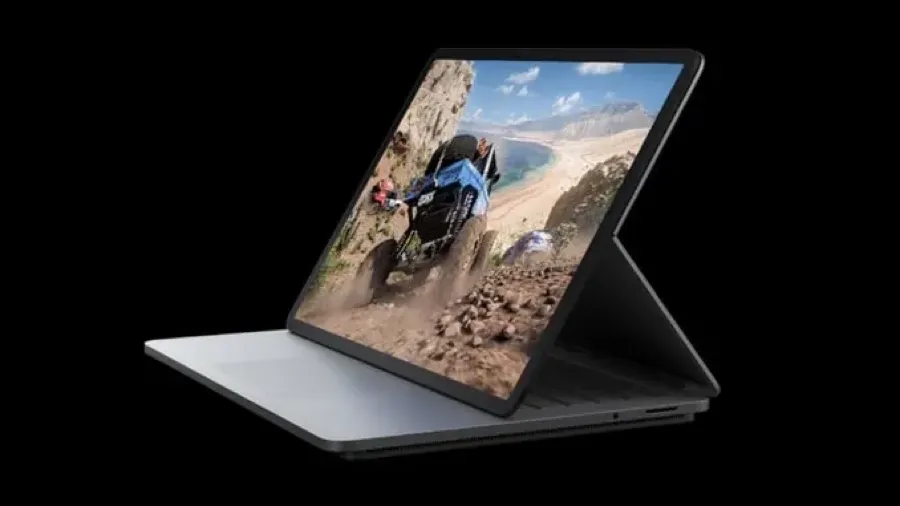

Even though the segment is short, TV is a great way of quickly letting people see what’s different about a phone like this. The BlackBerry Passport is big, but as you can see from the clip it fits comfortably in a jacket pocket. I get to show the size of the phone alongside the better known Apple iPhone 6 — the size comparison is useful. And I get to show how you can thumb type on the QWERTY keyboard.

Acronis True Image 2021 review - back-up, security

This post was written in 2021.

Acronis True Image 2021 promises to keep your data safe for around A$100 a year. It protects PCs and Macs from disasters, accidents, criminal attacks and ransomware.

What is True Image?

True Image started life as a back-up application. The name refers to the way it creates a copy or an image of your computer data on an external hard drive or cloud server.

Two years ago Acronis added security features adding ransomware protection to back-up. The most expensive version of the software included blockchain certification. I’m not convinced that is necessary. Yet there are those who find it useful.

The 2021 version of the software adds more protection. Acronis says it deals with malware, malicious websites and code injection. There’s a new antivirus scan.

All this means the security software has to work in real-time.

There’s the timely addition of protection from videoconferencing interference. This is a threat that emerged during the Covid-19 lockdown. The feature is not included in the MacOS version.

In effect, Acronis repackaged its enterprise security technology for individuals and small businesses.

One user interface

Having back-up and security controlled by a single user interface simplifies the two processes. That’s important. Many small business buy back up and security then fail to make the most of them because it’s difficult.

True Image 2021 has a clean, straightforward interface. This hasn’t changed since the True Image 2019 review written more than two years ago.

It’s not immediately obvious how everything works, but it is easy to learn. The trick is to mouse your way around the user interface and try all the options.

Once you’re done, you can leave True Image to work without day-to-day intervention, although it is likely you will need to revisit the app.

Testing True Image

I tested it on an iMac. Here it adds an icon to the menu bar. Unlike other MacOS apps, this is not a menu, instead it shows notifications. There is an option to open the app’s main screen from here.

Back-up remains the focus. You can create images of entire drives, partitions, folders or even individual files. True Image can back-up your network drives and add back-ups for your mobile phone or tablet.

There are options to do a full back-up, this can take a long time, or to do a differential back-up. This means backing up everything that changed since the last back-up.

Back-up options

You control the back-up frequency. Options range from monthly, which I’d regard as “why bother”? all the way to hourly. The default is daily. There’s a twice daily option which I’ve set to back-up about half way through my working day and then late at night. That way I’m never going to lose more than a few hours work.

More frequent back-ups are possible, but this can tie up resources.

There are options to remove older back-ups when you are running out of space on your target disc. You can do this manually or leave it to the software. You can also set up validations.

Pricing

There’s a basic A$70 subscription that doesn’t include cloud back-up. You’ll need a local or network drive. Acronis does not appear to allow you to use alternative cloud storage.

The A$98 Advanced plan includes 500GB of cloud back-up storage. There is a A$140 plan with a terabyte of storage. These prices are for one computer.

Acronis’ per computer price drops if you add more, but you don’t get more cloud storage.

This complex price structure is strange given that everything else about True Image 2021 works to hide complexity. I’m concerned that buyers can end up buying more than they need, or not enough.

Back-up updates

There are updates to the way True Image handles back-ups. It no longer duplicates data if a back-up is interrupted, say if you lose your connection. Instead of restarting and doing the whole back-up again, it picks up from where it left off.

While testing I ran into a couple of interesting observations. First, there may be times when you want to turn off protection. I did this when bittorrenting a copy of LibreOffice 7 for review.

True Image’s security stopped my bit torrent client from working. Fair enough. To allow it through I paused the software, then forgot to restart. The next morning an email arrived telling me the scheduled back-up failed.

This is excellent. It’s easy to forget to switch back on and leave yourself without back-ups or protection. Getting a non-intrusive reminder is the best way of fixing this.

Safe replication

Likewise, after first installing the application, I chose to make a replica of my Mac hard drive using the Acronis Cloud. All good. Then I swapped out my home WiFi router for a D-Link WiFi 6 router.

The router remained installed. When I went to update the drive replica, True Image responded with a message saying replication would restart after I connected to an approved Wi-fi network.

This protection would stop True Image from automatic drive replication when, say, a laptop connects to public WiFi. It takes a couple of clicks to resume replication with a new router.

True Image’s replication will wait until the everyday back-up is complete. It handles tasks one-by-one, not in parallel. This is useful on slower connection.

Fast, if your network is fast

Cloud back-ups are fast. I have a gigabit fibre connection, my WiFi 6 router is the bottleneck. It can clock speeds of over 500mbps. On my set-up, when True Image connects to the Acronis Cloud the reported speed fluctuates from around 100 mbps up to over 200 mbps.

Back-up times vary. The time indicator on the user interface gives a rough guide, but don’t take it seriously. It warned me a full drive back-up of 340 GB would take 52 minutes. I left it running and checked 30 minutes after starting to find it had finished.

Incremental back-ups of around 200 MB take a couple of minutes. Again, the times reported on the user interface can be misleading. The ‘less than one minute’ turned out to be a few seconds over two minutes.

Early back-up software, including earlier versions of True Image, could hurt system and network performance. I found this year’s edition of Norton LifeLock ties up all system resources when in full flight and then some. That is another story for another time.

True Image 2021 has no noticeable impact on performance. Automated back-ups can happen while I’m on a Zoom call and I’d never know. I haven’t seen a spinning Mac beachball while using True Image. This is in part down to plenty of headroom on a fibre connection and WiFi 6 local network, but, as mentioned, Norton struggles with the same resources.

Acronis True Image 2021 verdict

I can’t think of any other application that combines back-up and security in the way True Image does. The price is on a par with buying separate applications to do the two jobs.

You won’t need to pay for Acronis back-up and a separate security suite. You won’t need to learn two user interfaces. This is important if you don’t have full time IT professionals to call on for help.

Getting both back-up and security in a single integrated package from one source simplifies both.

Today, True Image is comprehensive to the point of providing more protection than everyday users or small businesses need.

It could be overkill for your needs.

If your data is precious or your work makes you a security target you should consider True Image.

If you handle other people’s data it could be essential. It makes sense if you work for a company or agency that requires high levels of security. Choose it if losing your data for more than a few minutes will cost you money.

Surface Laptop Studio review: Versatile Windows 11 PC

Editor’s Note: This review was originally published in April 2022 on billbennett.co.nz. While the hardware remains in use by many, the software, particularly Windows 11 and its AI integration, has evolved significantly since this was written. This post has been moved here as part of a site archive.

Surface Laptop Studio
For: Great touch screen, keyboard, trackpad. Versatile design.
Against: Expensive, lacks top end models for toughest workloads
Maybe: Windows 11. Battery life good compared with other Windows devices.
Verdict: Great desktop or mobile choice for on the move creative professionals. Innovative thinking.
Rating: 4.5 out of 5
Price: From NZ$2700

Closed, the Surface Laptop Studio resembles other Surface devices. It’s larger, but otherwise familiar.

Microsoft etched its shiny four squares logo on the brushed metallic top of the laptop. That way everyone watching knows you are using a Surface.

A hinge across the top looks similar to the kickstand you’ll find on Surface Pro tablets.

Elegant, minimal

Open the lid and the keyboard and touchpad will remind Apple users of an old school MacBook Pro. It is all about elegance and minimalism. There are no annoying, embarrassing stickers boasting about what is inside.

The LCD touch screen looks great from the moment it lights up. At 14.1 inches with a few mm of bezels, it is a generous size for working or playing on the move. A high 120Hz refresh rate adds to the classy look and feel.

It’s hard to find a bad display on any device that aspires to be more than a basic bargain basement workhorse. Yet, this is good. You may not always be conscious of the high refresh rate, but you’ll notice it immediately if you look at a similar size screen with a slower rate.

Transformer

Fiddle around with the open laptop for a moment and you will find that the screen swings away from the laptop lid along that hinge line we mentioned earlier.

This hinge may be a simple innovation, but it is what puts the Surface Laptop Studio in a class of its own. It turns the Laptop Studio into a more modern, upmarket take on the hybrid device idea.

Magnets in the lid and elsewhere on the case help you position the screen in a range of positions. That way, the laptop transforms into other Windows 11 devices.

Stage mode

There’s what Microsoft calls the stage mode. You could use this to watch videos. It works well for Zoom or Teams calls. There’s a reverse position which has the screen pointing away from you. This may be useful for giving presentations to a small audience

You can fold the screen all the way down. This, in effect, reverses the lid position and turns the laptop into a thick and heavy large screen Windows tablet.

At 1.8 kg and 20mm deep, the Surface Laptop Studio makes a hefty, thick tablet. Your arms will tire if you hold this for a long time. Mind you, the 14 inch screen is larger than you’ll find on other tablets. This makes direct comparison with, say, a ten-inch iPad, meaningless.

Studio

There’s a variation on this known as studio mode. You might use studio mode to sketch or write on the screen with Microsoft’s optional Slim Pen 2 stylus. In effect it turns the computer into a giant drawing tablet.

Artists and designers will find this handy. Whether you find these screen positions useful is another matter.

At first it takes a conscious effort to use them, we have become conditioned to using laptops in certain ways. During the short review period it never felt natural using these modes, that might change over time.

And that’s the nub of the Surface Laptop Studio. Its signature feature is not for everyone.

Fan base

The extra thickness is, in part, down to the curious design of the base. It is smaller than the size of the rest of the case. It is where the CPU and the graphics processor live and there are fan vents at both ends.

When you push the computer hard, the fan will kick in. You can hear it working, it’s not silent, but nor is it noisy. You won’t be distracted and the sound should not interfere with video calls.

The fact that the Laptop Studio needs a fan underlines how much Microsoft’s rival, Apple, has moved ahead of Intel processors.

CPU power

Microsoft uses an 11th generation Intel Core i7 in the review device. This is as good as it gets in the Intel world. There is a cheaper model with a Core i5 processor.

Intel’s i7 is more than powerful enough for everyday users. Even the majority of power users will be satisfied. Unless you run the most demanding applications you will not want for computer power.

Yet it is no match for the processors in Apple’s current laptops and high-end tablets.

Graphics processor

Microsoft includes the NVIDIA GoForce RTX 3050 Ti graphics processor in the review model. The cheaper version of the Laptop Studio uses Intel Iris X.

The graphics processor and CPU quickly get hot if you push the hardware. That’s not going to happen if you use the device for business applications, mail, web surfing and Zoom calls.

If you play games it is another story. It was noticeable during the device set up that Microsoft encourages users to sample its game playing services.

Maybe Microsoft does that with every device it sells, yet this would be the Surface device that delivers the best gaming experience. Powering through tasks

In testing, the i7 version of the Surface Laptop Studio was more than the equal of any conventional business application. It handled photo editing tasks with ease.

Although Microsoft’s marketing describes the Laptop Studio as ‘workstation class’, that’s pushing it.

Running high end workstation apps is beyond the scope of this review, but looking at the specification, the device might struggle with heavy duty video work.

You’ll find workstation class laptops from rival brands that sell for a similar price to the Surface Laptop Studio, but offer more raw power.

Battery hog

It was noticeable that high-end work is greedy for battery power. Use the Surface Laptop Studio for everyday work and you might get ten hours on a single charge. There would be fuel left in the tank after a normal day’s work.

This is a long way behind the latest Apple MacBook Pro models that sip battery power and can run for 14 hours on a charge. Things get worse fast if you perform tasks where the fan kicks in. When you can hear its gentle hum you know you’ll be lucky to get four hours before hunting for a power socket.

Speakers, keyboard, touch pad

Two other hardware features are worth mentioning. The speakers are surprisingly good considering the engineers had little room to work with. You’d need external speakers for serious audio editing work and fussy listeners might prefer to hear music delivered that way. Otherwise, your ears will be happy.

Microsoft has included a first rate keyboard. This is one area that laptop buyers can overlook. Once you’ve got past the novelty of a new computer and its power or features, you can often end up feeling frustrated by a less than perfect keyboard. This can be even more the case if you buy a tablet with a keyboard like, say, the Surface Pro.

The haptic touchpad is equally excellent. It is as good as anything you’ll see from Apple. This has not been the case with Surface devices in the past.

Microsoft missed a trick not including an SD card slot. That would be helpful for the creative market the laptop aims to serve. Windows 11

As you’d expect, the review Laptop Studio was delivered with Windows 11.

Thankfully Microsoft avoids the bloatware that Windows rivals unhelpfully pack with their hardware. The only preloaded software is a trial version of Microsoft Office. This is hardly an imposition. Almost every Surface Laptop Studio buyer will want Office.

Microsoft’s Hello face recognition works as before. It’s a better way of logging in. While the hardware impresses, Windows 11 itself remains questionable as an upgrade for most users.

Firing up Windows 11 for the first time took the review computer into Microsoft’s tiresome, but essential software update process. It was a full 20 minutes before the computer was ready to work and that is on a gigabit internet connection. If you have a slower link, don’t expect to open the box and get started straight away.

Handwriting recognition

It took a while to realise that Windows 11 has improved handwriting recognition compared with earlier versions of Windows. This makes the various modes more useful than they might otherwise be if you buy the optional NZ$200 Surface Slim Pen.

Like the Touchpad, the Slim Pen has haptic feedback which makes writing on screen feel like a pen on paper. It’s impressive, but not essential for productivity.

Bold move

Surface Laptop Studio is another bold, you might even say brave, hardware move from Microsoft. The software and cloud company shows it remains determined to push the device design envelope.

This strategy doesn’t always work. Surface Duo was ridiculous and the early Windows RT tablets flopped.

Yet, in a sense, that’s the whole point of Surface. Microsoft got into the device business ten years ago because it wanted to push its Windows hardware partners into more innovation, more risk taking.

Sans Microsoft

In passing it is worth mentioning that Microsoft no longer brands its hardware as “Microsoft Surface”. It is letting the name stand on its own. There’s more distance than in the past. While this would make it easier to sell the division in future, it looks as if the idea is more about giving the brand more meaning.

Surface devices don’t sell in huge numbers compared with hardware from HP, Lenovo, or that elephant in the room: Apple. In round numbers Surface accounts for about four percent of US device sales and a lower share of worldwide sales.

Where Surface fits

The range does make money for Microsoft, but is dwarfed by the company’s cloud, enterprise software and personal software business. This could change if Surface stumbles over a hit product.

Surface’s more important role is laying down important markers and staking out turf. Microsoft doesn’t say as much, but it’s clear it wants to show it can go head to head with Apple with innovation. Or at least prove it in the same league.

Surface Laptop Studio verdict

Despite the versatility, Microsoft’s Surface Laptop Studio is not hard to use or understand. Its ability to shapeshift may be essential for a niche creative audience, but it will have broader appeal, for novelty value if nothing else.

There’s no question the Laptop Studio is expensive. Prices start at NZ$2700, you can pay NZ$5350 for a fully-loaded model with 2TB of solid state storage, 32GB of Ram and the top-of-the-line CPU and graphics.

Microsoft wants a further NZ$200 for the Slim Pen. That’s outrageous. At these prices the pen should be bundled. That said, at least you don’t have to dig deeper to buy a keyboard. That’s annoying when you buy a Surface Pro.

The problem potential creative buyers face is the money you’d pay for a Surface Laptop Studio can buy a more powerful workstation class system. Go that route and you won’t get the portability or the versatility, you will power through your work faster.